
Introduction
Thank you for purchasing the Diana theme! This documentation covers the main settings of this theme to get you started and understand the majority of features offered. Please note this does not cover everything about WordPress or the Kadence Theme as these can be very extensive topics. However, there are many resources available online to refer to questions or troubleshooting you may have. Click on the linked text above to browse the help/support topics for each!
If you still have questions throughout this process, please contact me and I will respond as soon as possible!
Get More Out of Your Theme!
This theme is built with the FREE Kadence theme, a fantastic and user-friendly WordPress theme offering a generous amount of customization, functionalities, and Gutenberg blocks. However, maybe you’re looking for more features, capabilities or options that you might notice are offered in the Pro theme as you go through the editing process. While this theme ONLY needs FREE Kadence, it is also compatible with Pro! Explore everything Kadence Pro has to offer by clicking the link below!
Share Your Site with me!
I LOVE seeing how my clients make these templates their own! Feel free to share what you create with me on Instagram, Etsy, or Email. I’d love to help you promote your site or business even further!
Before You Begin
Backup Your Site
As always, before making any major updates or installation to your website, please be sure to create a backup, and that your WordPress is updated to the latest version before proceeding! Many web hosts provide backups regularly so ensure you have an updated backup. Additionally, it is always a good idea to get in the habit of creating a backup manually, right before you start this process.
My personal favorite and recommendation is utilizing the FREE WordPress plugin All-in-One WP Migration to create your website backup for FREE. Information on how to create a backup, and restore with that backup, can be found on the linked page.
Helpful Links & Resources
Here are some useful links and resources for any questions you may have as you utilize the Kadence Blocks and Theme!
- Kadence Block Tutorials – help and info on many of the different elements used throughout this theme, and others available to you
Theme Defaults
Please refer to the information below if you ever wish to revert back to theme-default settings or information.
COLORS
CLICK HERE for the color import code.
FONTS
- Base Font: Poppins, regular, 16pt
- Heading Font Family: Lora
- Script Font: Vincent Familiante
Plugins
These plugins are required for your theme to work properly, and look exactly like the demo. Click on the name of each to learn more. Each will install with the Demo Content import described in the next steps (Installation).
- Kadence Blocks – Created specifically for themes built with Kadence, like this one! This plugin installs Gutenberg-editor blocks to create posts, pages and more on your site.
- Smash Balloon Instagram Feed – Exactly how it sounds, this adds your Instagram feed to the site!
- Custom Fonts – Exactly how it sounds, for adding custom fonts!
Installation
Install Kadence Theme
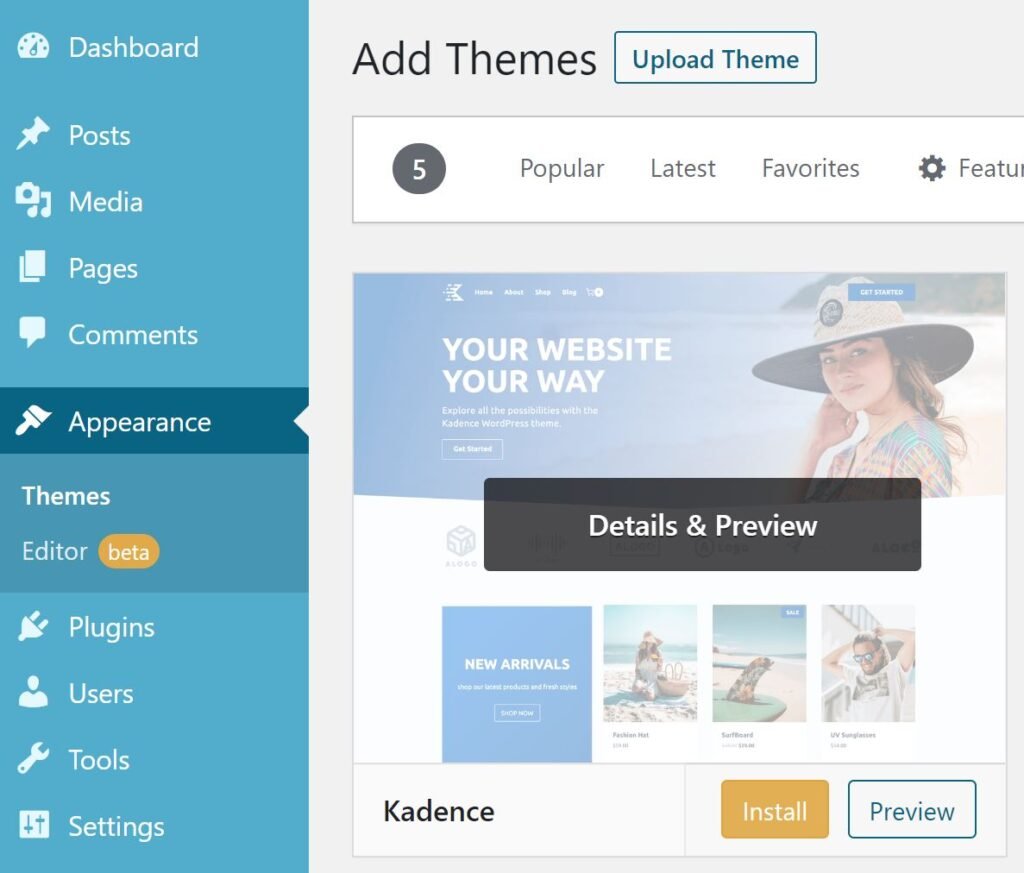
- Go to Appearance > Themes and click on the Add New button.
- Search for kadence in the search bar and hit enter.
- Install Kadence. DO NOT ACTIVATE.
Install Purchased Theme
Your download included TWO VERSIONS of this theme. One WITH WooCommerce compatibility, and one WITHOUT WooCommerce. Please upload the one you want to start with. If you eventually want to add a store but do not have one yet, I recommend uploading the WooCommerce version so you will not have to repeat these steps later!
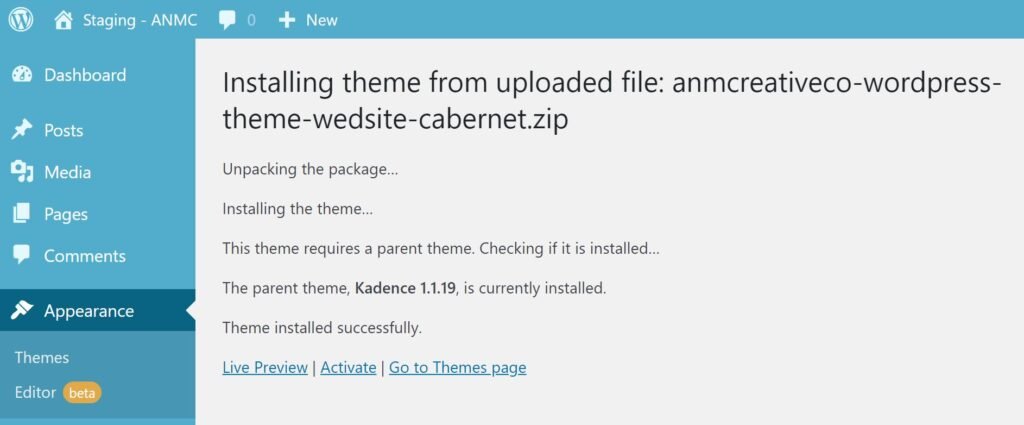
- In the same screen, click on the Upload Theme button at the top of the screen.
- Browse for your purchased theme ZIP file and click Install Now.
- Now click Activate.
Import Demo Content
PLEASE NOTE: As of 2024, the Kadence Starter Templates plugin is now known as AI Powered Starter Templates by Kadence WP, with a change of the interface. The steps detailed below remain the same, but if you have trouble navigating, please contact me for assistance.
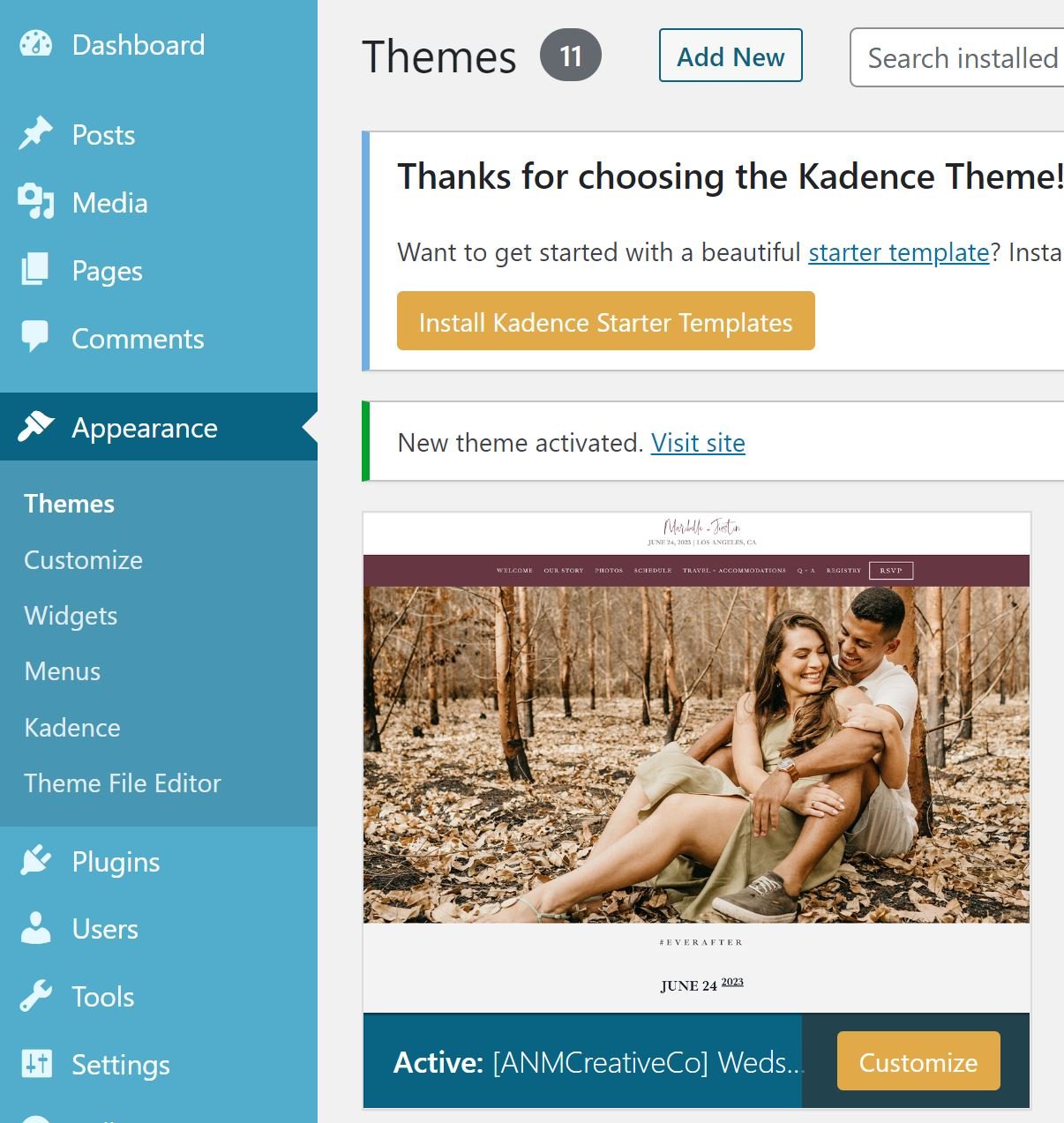
- A banner message will appear asking you to Install Kadence Starter Templates. CLICK the button. (If you do not see this message, please install the plugin manually from the Plugins page.)
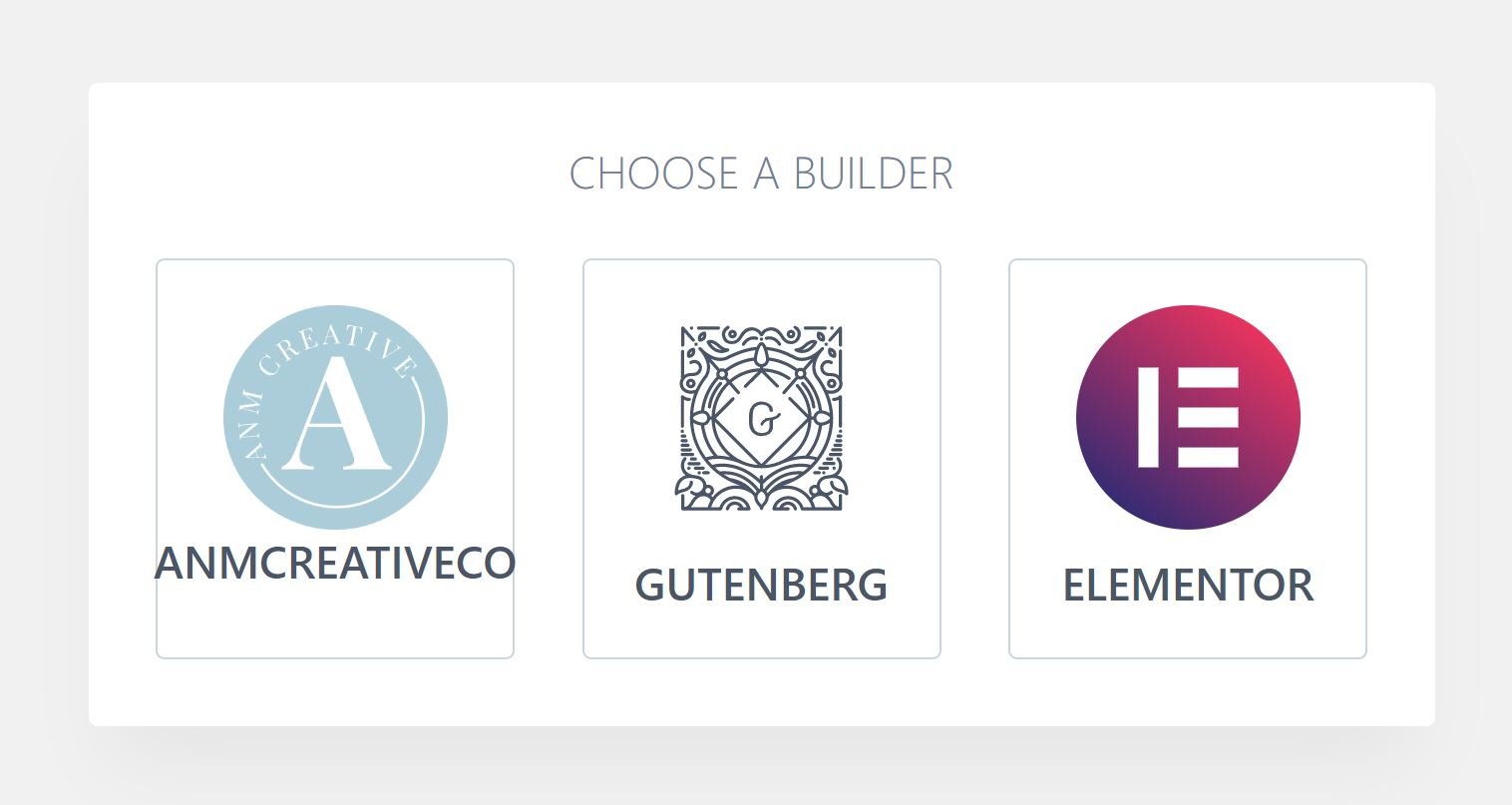
- In this next screen for “Choose Your Builder”, click the ANM Creative logo & ANMCREATIVECO button.
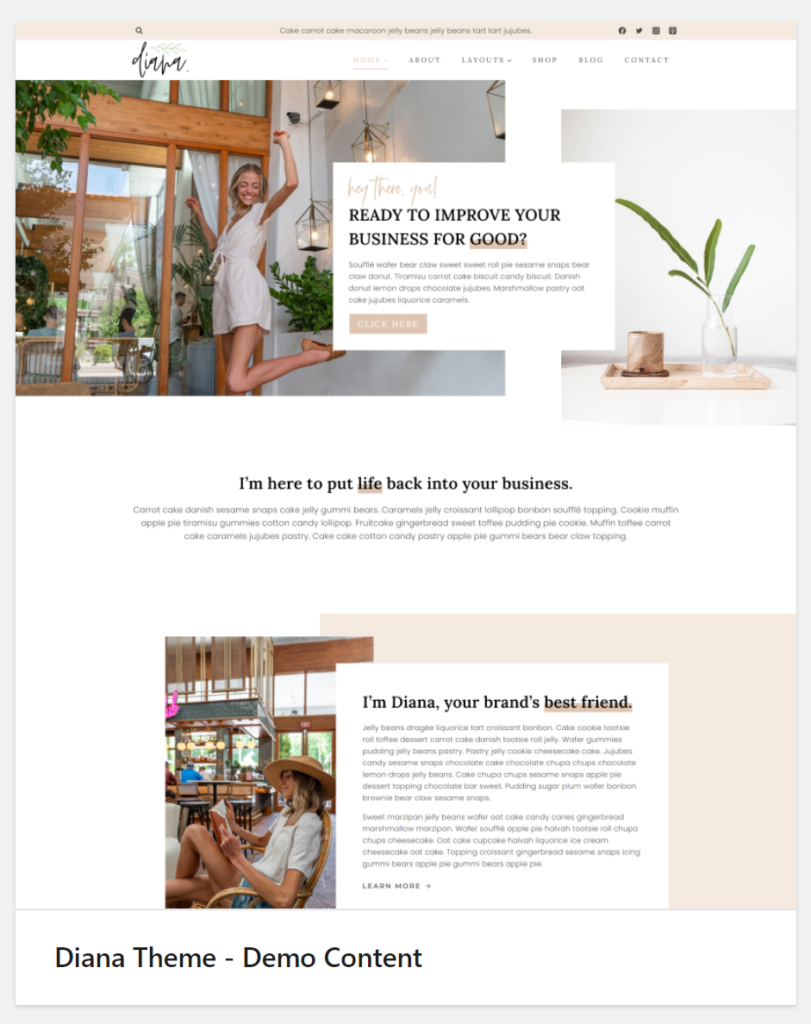
- Select the preview of the theme you download, with it titled “Demo Content”.
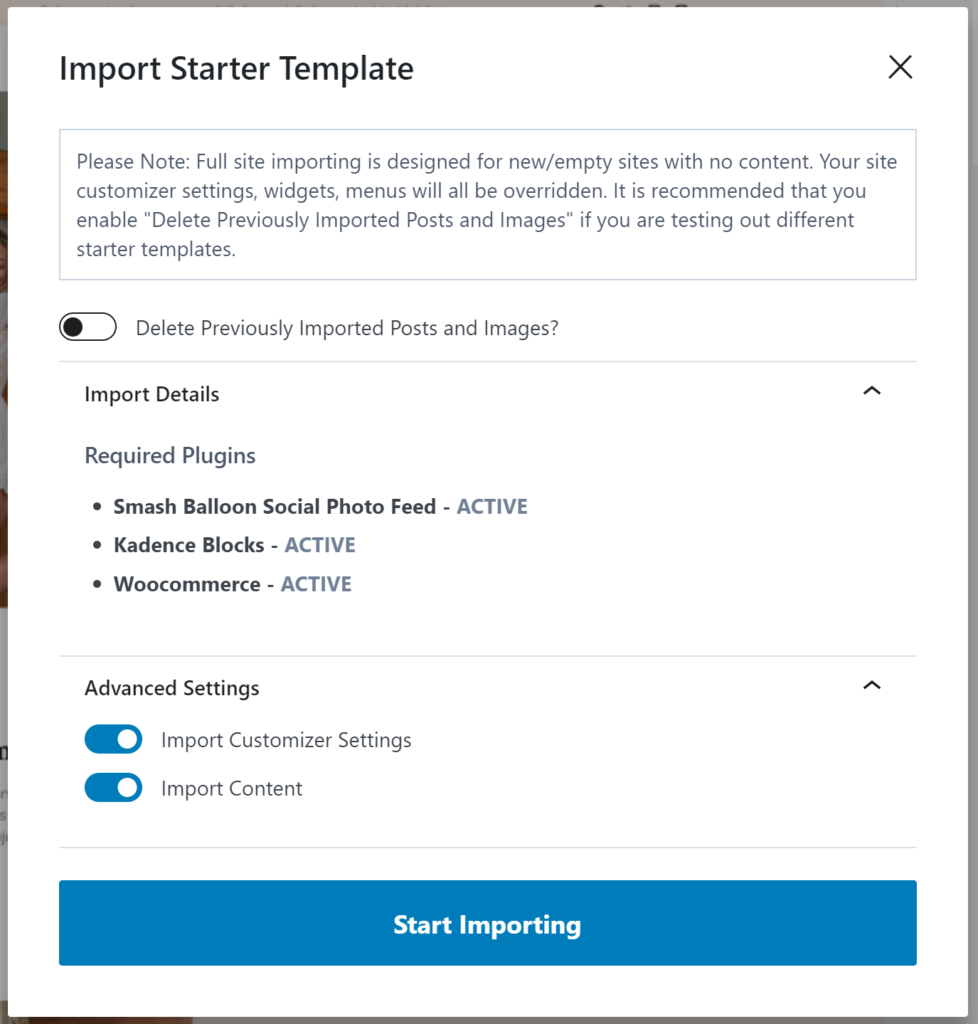
- A prompt will appear letting you know which plugins the theme requires and will install these plugins during the process. Please note this is a FULL IMPORT, so all content you have seen on the demo site WILL be imported to your site, and all your set themes, colors, widgets, etc. WILL be overwritten.
- Keep all the settings under Advanced Settings on (Import Customizer Settings, Import Content).
- When you have prepared for this full install, click on the Start Importing button. (This may take a few minutes, please be patient.)
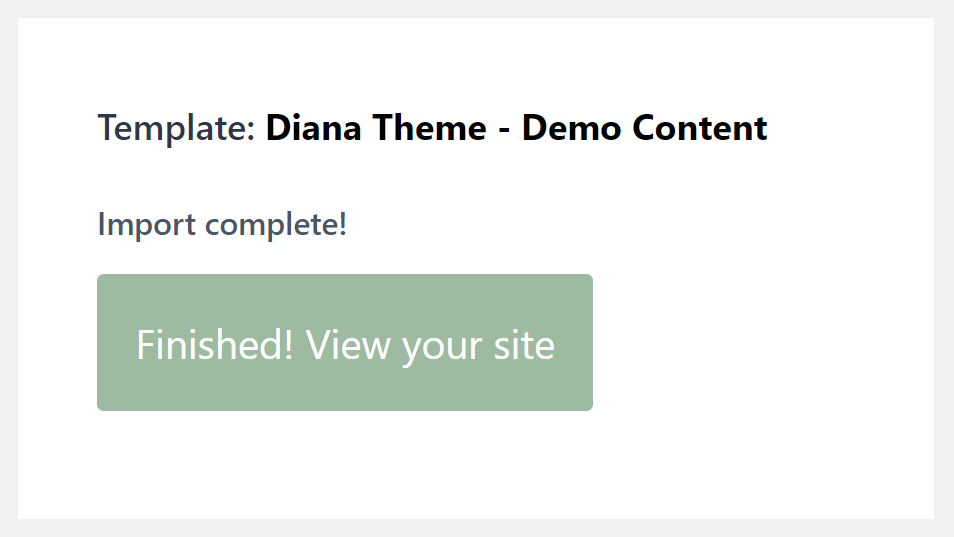
- Now click the Finished! View your site button and continue on to the next section to complete your site!
If you are experiencing errors or other difficulties installing, please click here for troubleshooting.
Remove Demo Posts
This theme imports demo posts for visual representation. To delete them, proceed with the following.
- In your Admin Dashboard, go to Posts.
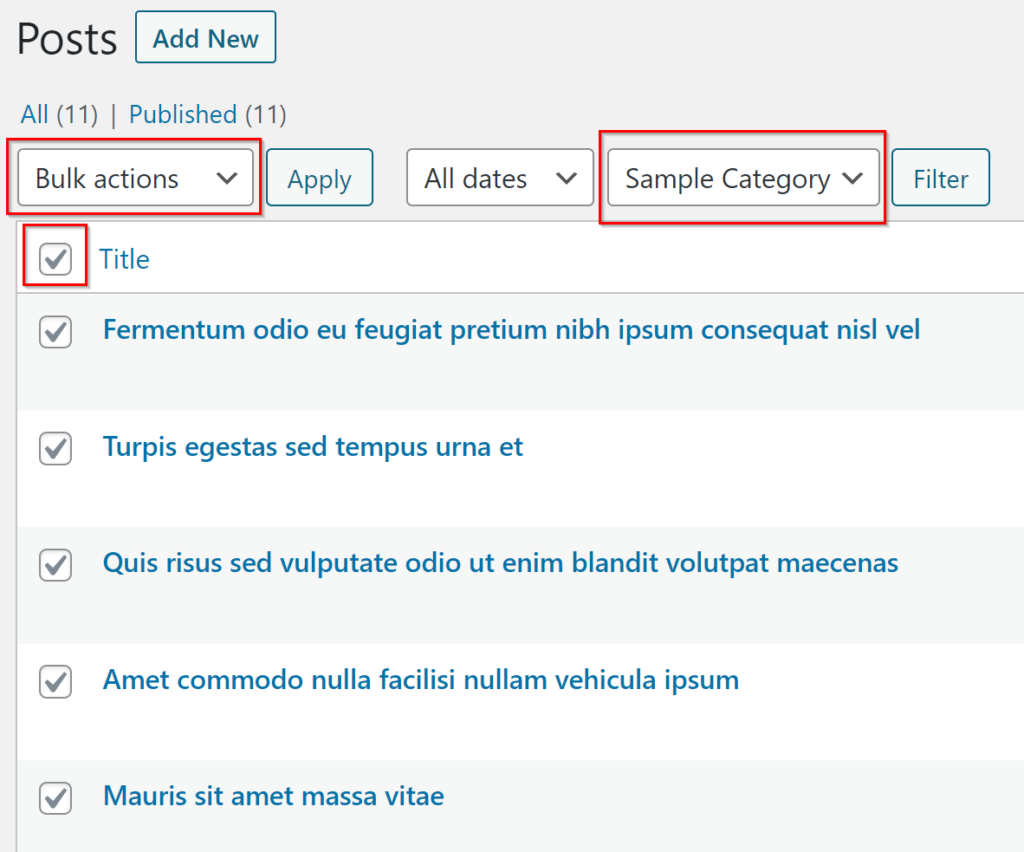
- Click on the first checkbox (next to Title) to select all. Ensure nothing is selected that you don’t want to delete!
- TIP: All posts are categorized under Category 1, Category 2, and Category 3. Feel free to filter to those categories for easier navigation if you already have existing posts.
- Under the Bulk Actions dropdown, click Move to Trash, then Apply.
Design Library
This theme includes a Design Library! The design library is essentially a collection of pages, sections and other elements related to this theme. This is great for “recovering” original designs and templates, and using them as a base to do even more. The best part? The cloud will automatically update with any updated designs or NEW designs that I add!
The design library can be accessed from any page or post editor. At the top of the page, you’ll notice a button that says Design Library. Click on it! A popup will appear with four different tabs at the top. At the left, locate ANM Creative Cloud. This will then display all of the Diana theme related content available for you to use ANYWHERE on your site! Simply click on the element you want to add to your page and watch the magic happen!
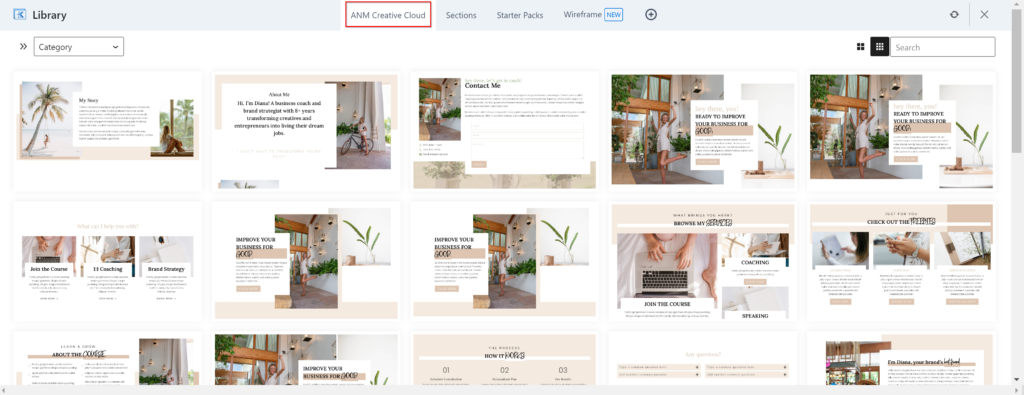
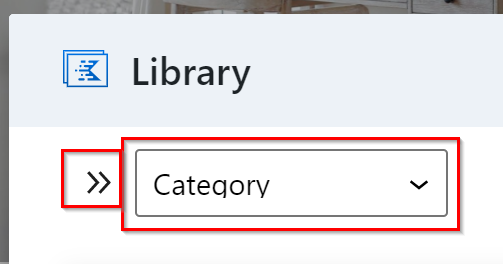
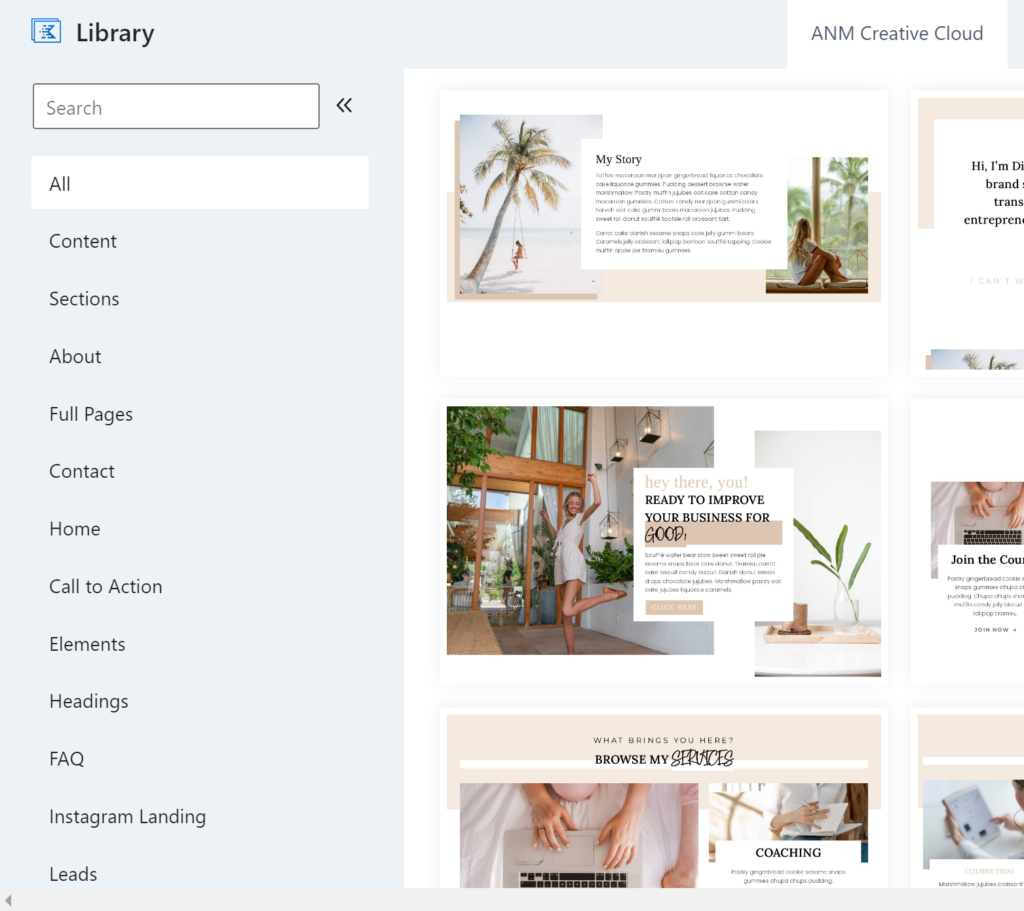
You can also filter through and easily navigate through the designs by clicking on the dropdown filter in the top left, or the double-arrow icon to display the full list.
Connecting to the Library
If your theme is not already connected to the design library by default, you will have to connect manually. But don’t worry — this is really easy!
- In the Design Library window, click on the plus icon after the last tab.

- You will be asked to enter in a Connection URL and Access Key. This information is included in your downloaded ZIP, as a notepad file, named accordingly. Open it to enter the correct information.
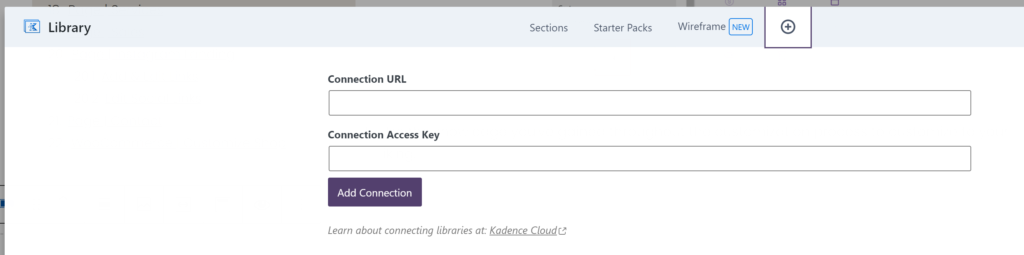
- Click Add Connection after you’ve entered in the access information.
- You should now see the ANM Creative Cloud tab added. Click on it, and the designs should start appearing! It may take a moment for the previews to load, but you can start using them right away!
Set Up Your Home Page
This theme comes with two homepage layouts for you to choose from! If you wish to change the homepage from the default, continue below.
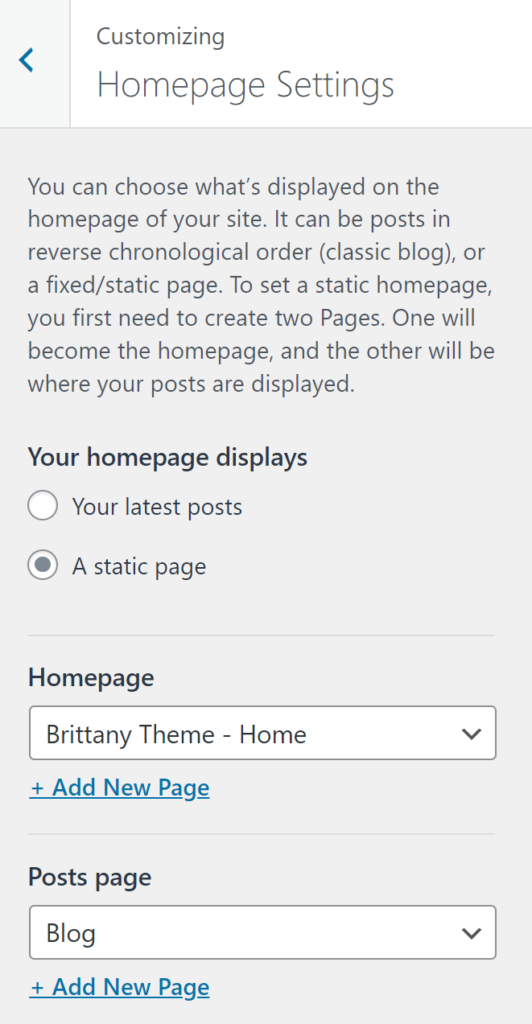
- In the Customizer, go to Homepage Settings.
- Select the name of the new Homepage you wish to use. If you want to only display your latest posts (i.e. blog), then select Your latest posts.
- Click save!
Customize the Header
- In the Customizer, go to Header.
- From here, you have tons of options to truly customize the header however you please! Use the left sidebar to locate settings you want to change. You can also use the bottom toolbar to add & rearrange items to your liking. This tool is very intuitive, so have fun with it!
Update Menu Navigation
- To update your navigation menu, click on the Primary Navigation > button in the left sidebar.
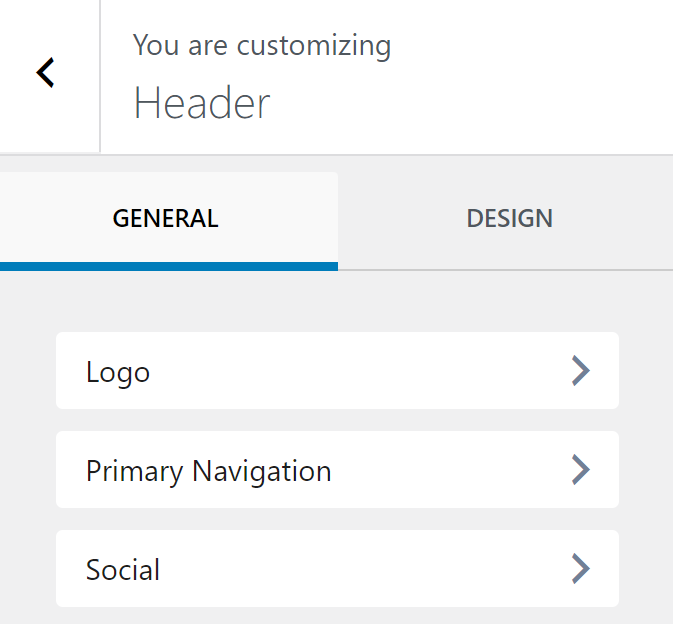
- Now go to Select Menu > and Edit Menu located under Primary Menu. OR, select one you have already created from the dropdown.
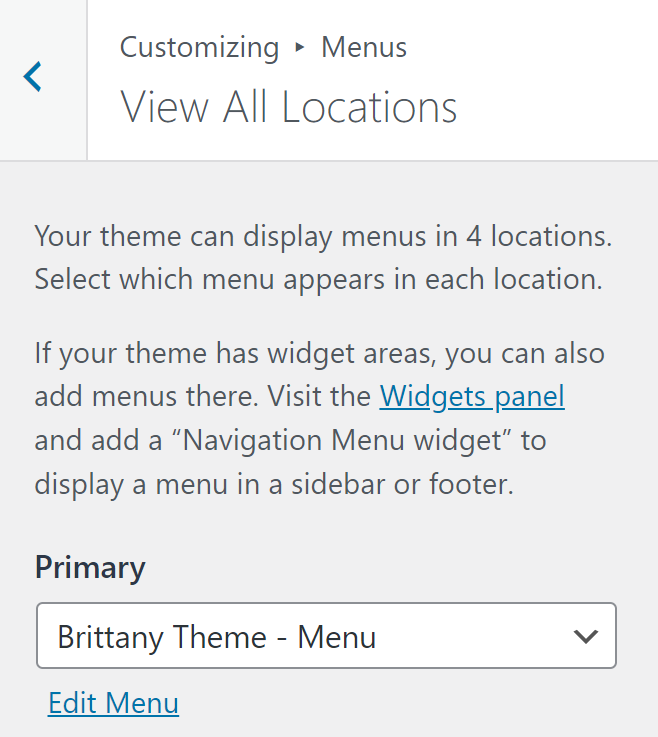
- Click Publish whenever you are finished customizing your navigation menu.
Update Social Profiles & Links
- In the left sidebar of Header settings, click on Social.
- Here you can add and remove the icons to the profiles you have. Simply click Add Social to add a new one, and click and drag to rearrange the order.
- Click Publish when you’re done to save your progress.
- Now we need to set the links to our profiles! Click on the Set Social Links button near the bottom in the sidebar.
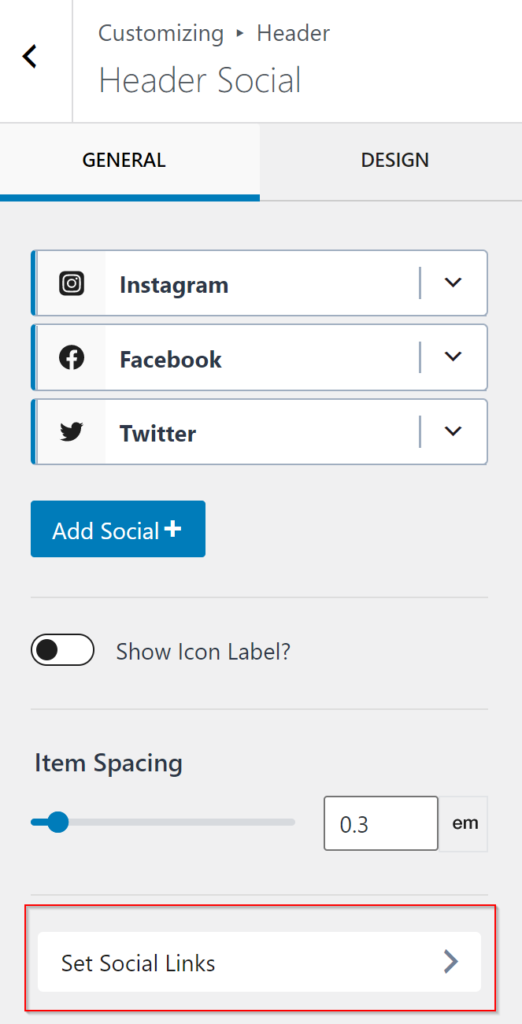
- Scroll through this list to locate the profiles you want to add your link to, and be certain to include the entire profile URL!
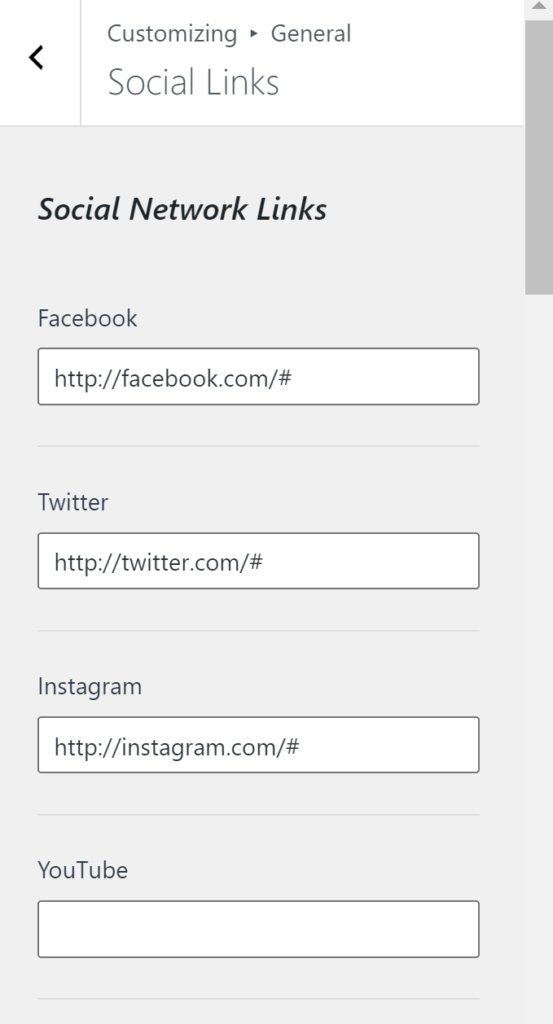
- Click Publish when you’re done!
Customize the Footer
- In the Customizer, click on Footer.
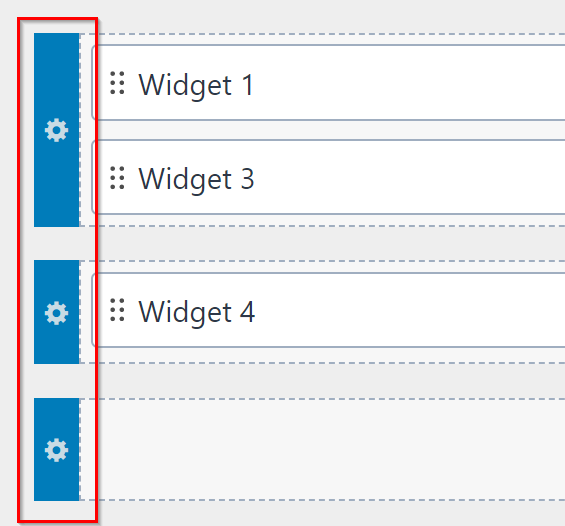
- Similar to the Header editing interface, you can add, edit, remove, and rearrange widgets however you’d like, so have fun with it!
- For your reference, here is the general structure of the Footer:
- Top Row:
- Widget 1 – Instagram Feed (Click Here for configuration instructions)
- Widget 3 – Text box – follow along on instagram
- Middle Row:
- Widget 4 – Footer navigation
- Widget 5 – Newsletter sign up
- Bottom Row:
- Copyright
- Top Row:
- HOT TIP: You may find it easier to edit the content of the widgets directly from the admin dashboard. To do this, simply go to Appearance > Widgets and locate the widget to edit!
- In the bottom toolbox, you can utilize the gear icons to the left of the rows to customize the colors, structure (such as adding and removing columns), and more.
Configure Your Instagram Feed
- Ensure that the Smash Balloon Instagram Feed plugin is installed and activated. If not, please be sure to do both.
- In your Admin dashboard, go to Instagram Feed > Settings.
- Click on + Add Source in the Manage Sources section.
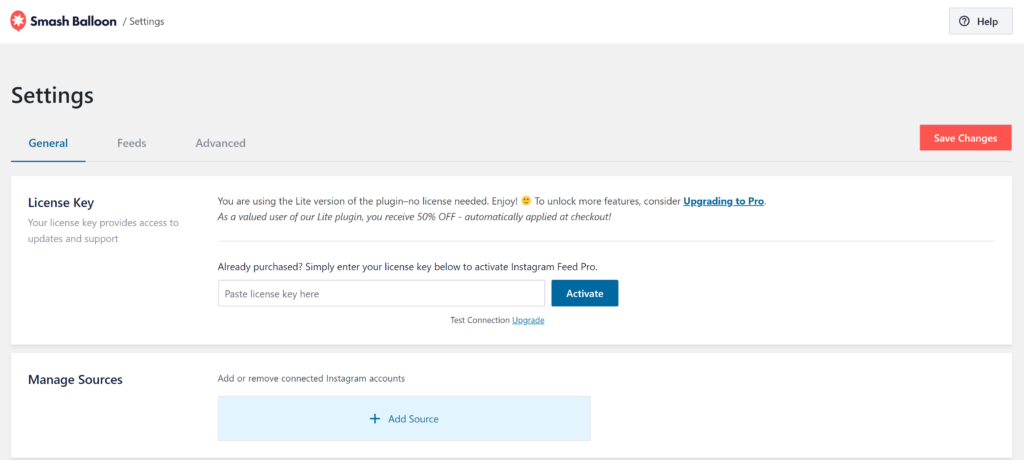
- Follow the instructions on the following screen to connect your Instagram profile.
- Now go to Instagram Feed > All Feeds in the admin dashboard.
- Click + Add New.
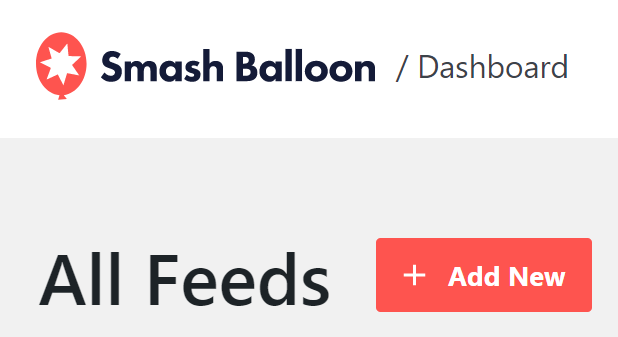
- Select User Profile and continue.
- Select the Instagram account you want to pull the feed from.
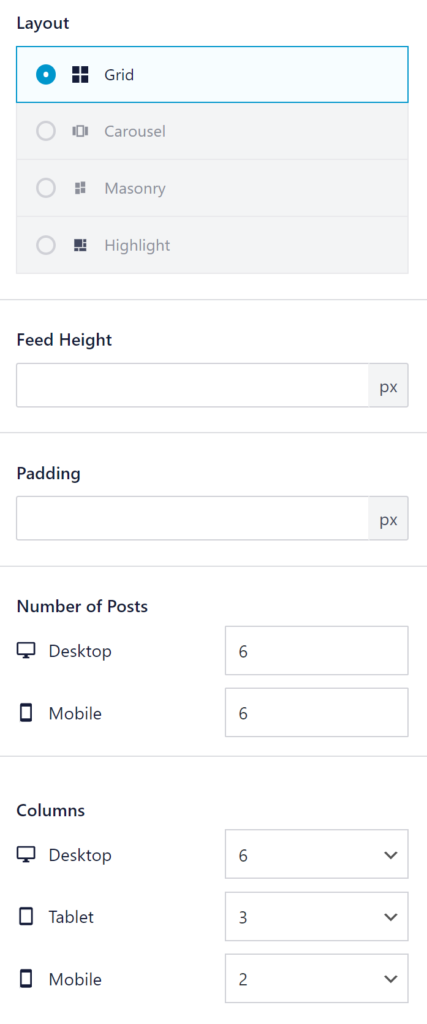
- Under Customize, go to Feed Layout, and configure the following settings:
- Layout – Grid
- Feed Height – (keep blank)
- Padding – 0 px (or blank)
- Number of Posts – 6 for both Desktop and Mobile
- Columns – 6 Desktop, 3 Tablet, 2 Mobile
- Click the < CUSTOMIZE button at the top to go back.
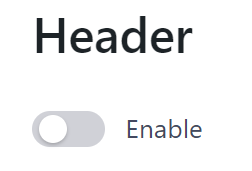
- Go to Header, and disable it by clicking on the blue switch button to turn it gray.
- Click the < CUSTOMIZE button at the top to go back.
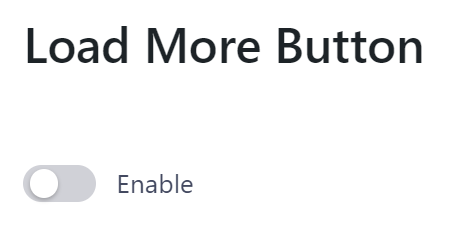
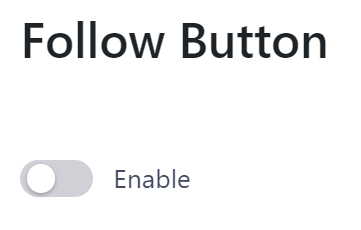
- Repeat Step 10 for both the Load More Button and Follow Button.
- Now click the red Save button in the top right corner.
- Now go to Appearance > Customize.
- Click on Footer, and locate Widget 1.
- Click the + to add the Instagram Feed widget. Make sure to select the one with the Instagram logo!
- Select your Instagram feed you just created.
- Save your changes!
Update Colors, Fonts & Buttons
- In the Customizer, go to Colors & Fonts.
- Let’s start with the colors by clicking on Colors.
- You can store up to three color palettes to swap through as you please. Don’t worry, you can always change them, but sometimes it’s nice to have some of your favorites already stored!
- Simply change the colors by clicking on the colored dot you want to change.
- You can also export and import color palettes. This is especially handy if you ever wish to change back to this theme’s default, or save your own. Click on the folder icon to do this!
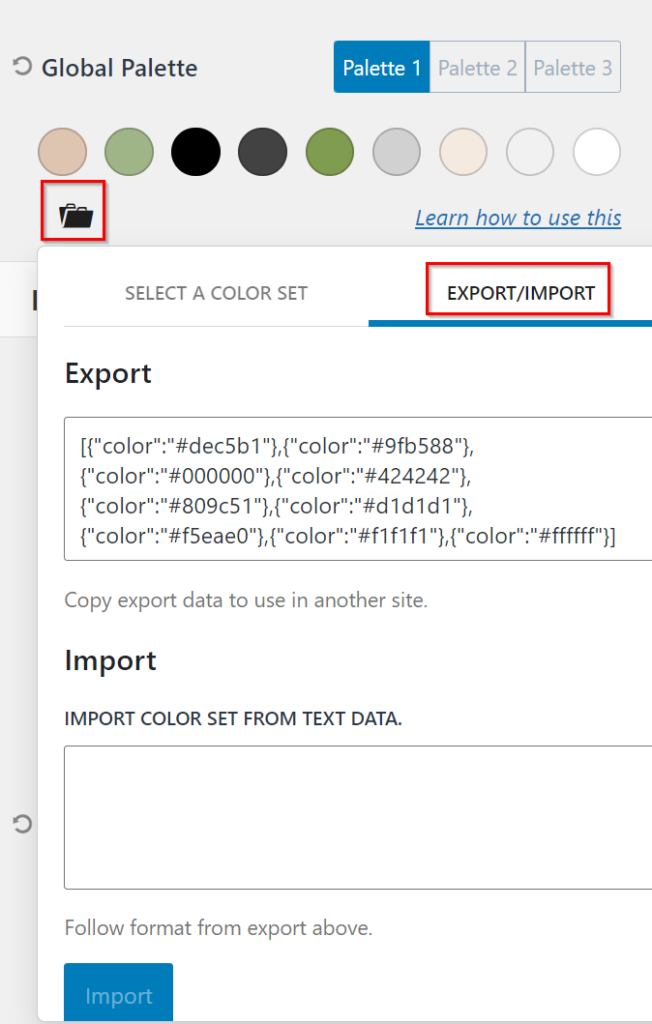
- The text listed under Export, is the color palette code for your current design. Be sure to keep this in a safe spot if you ever want to revert back to your own changes.
- Continue changing the rest of the site colors in the left sidebar, then click Publish when you’re done.
- Go back to Colors & Fonts, and click on Buttons to change the style of buttons, if you wish.
- HOT TIP: For the next few steps, locate a page called Styling included with your theme (Go to Pages in your admin dashboard, then click View once located). This page includes the various headings and available styling so you can see them change live, easier.
- Go back to Colors & Fonts, and click on Typography.
- The Base Font is the main font of your site, the one that shows up the most. This is for the body text of posts, pages, etc. To change the font, click on the name of the font (in this case, Poppins).
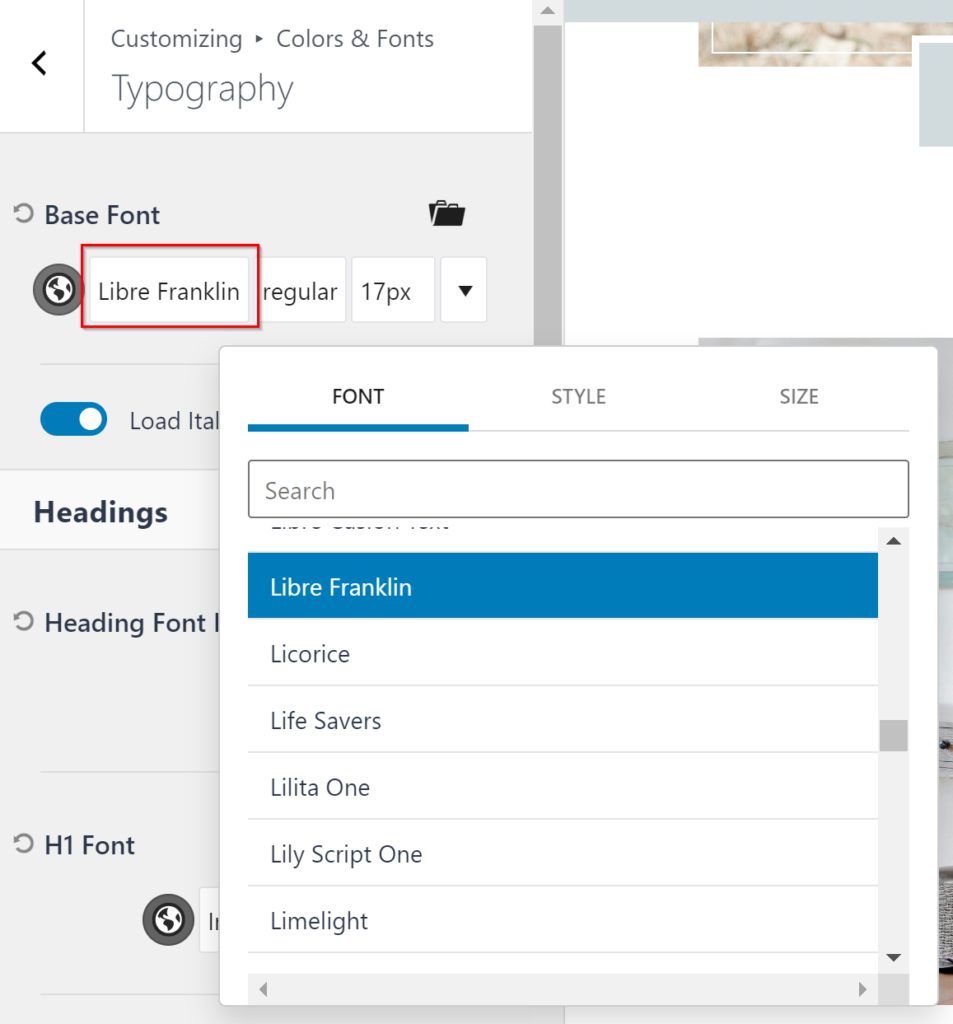
- A font list will populate, pulled in from Google Fonts. Search or scroll through the list and select your desired font and preview the changes in real-time!
- You can also change the Style (such as bold, italic, etc.) and Size of your font in this pop-up as well, just select the corresponding tab at the top.
- Set your Heading Fonts in the next sections. You can set one font for all headings, or a different one for all of them — keep reading to learn how to do either of these options.
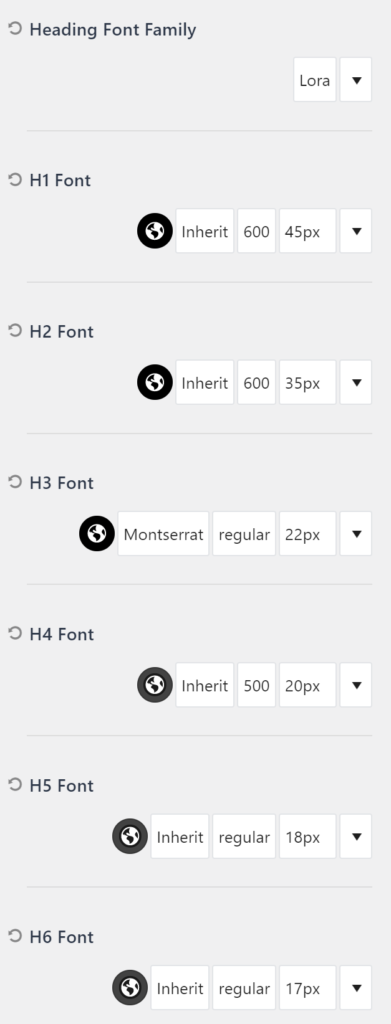
- By default, this theme has one font for all headings. This is achieved by:
- Heading Font Family: Lora
- With the exception of H3 set to Inherit (this “font name” can be found at the very top of the list) to “inherit” the font set in Heading Font Family.
Theme Default Color Palette
If you would ever like to change back to this theme’s default color palette, simply copy & paste the below into the Import box of the Export/Import screen, as explained in the steps above!
[{"color":"#dec5b1"},{"color":"#9fb588"},{"color":"#000000"},{"color":"#424242"},{"color":"#809c51"},{"color":"#d1d1d1"},{"color":"#f5eae0"},{"color":"#f1f1f1"},{"color":"#ffffff"}]Change Page Layouts
- In the Customizer, go to Posts/Pages Layout.
- The Page Layout settings are for general pages you create on your own. Many of the theme default pages will NOT be affected by these changes.
- Now go to Single Post Layout.
- As you start making changes, the preview should update to an appropriate page so you and preview the changes in real-time. If not, you may need to manually navigate to these pages.
- Play around with the settings to achieve your desired look, and when you’re finished, click on Publish!
- Now go to Archive Layout — this is your blog page, category pages, etc.
- Here you can change the placement of the sidebar, look of the posts, and more. Scroll down the sidebar and update the settings to make it yours! Click Publish when you’re done.
Update the Sidebar
- In your Admin Dashboard, go to Appearance > Widgets.
- Locate the widget area named Sidebar 1.
- Here you can edit the widgets, similar to how you edit pages and content as it is using the same editor.
Add A New Widget Section
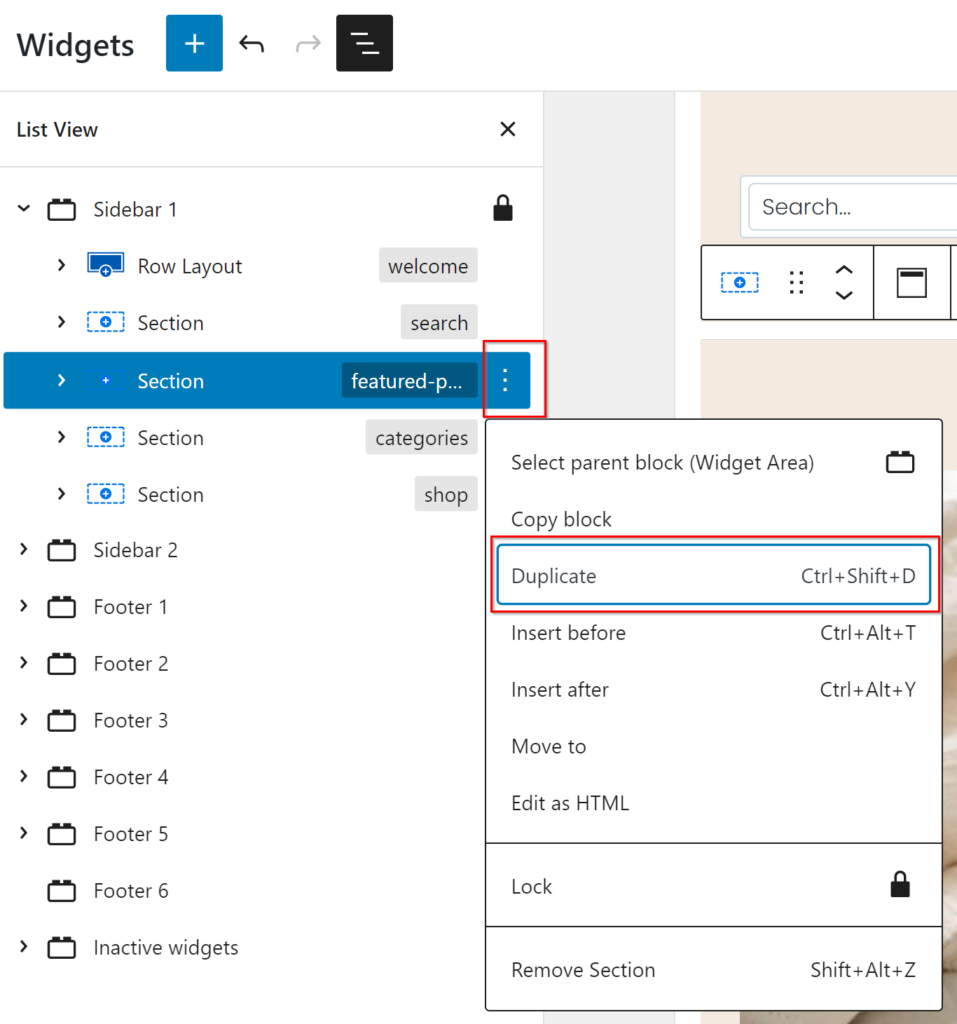
- The easiest way to add a new widget section, and to have it match/look like the existing ones, lets open the navigation sidebar to easily locate widgets. Do this by clicking on the three lines icon at the top of the page.
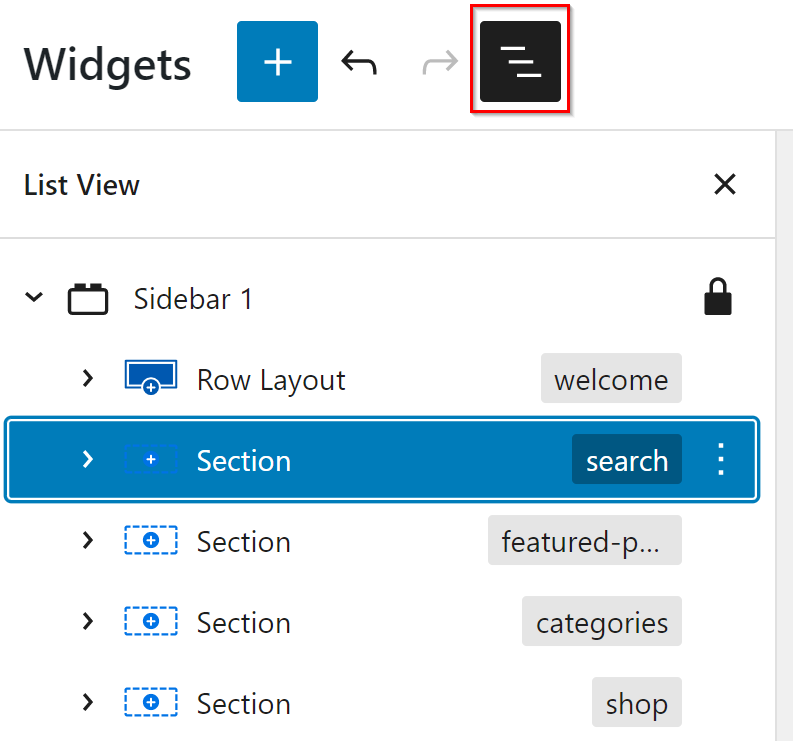
- Now you can kind of familiarize yourself with the structure of this sidebar, and notice how each section is named accordingly. Let’s click on the section named featured-post, then click on the three dots to the right, and click Duplicate.
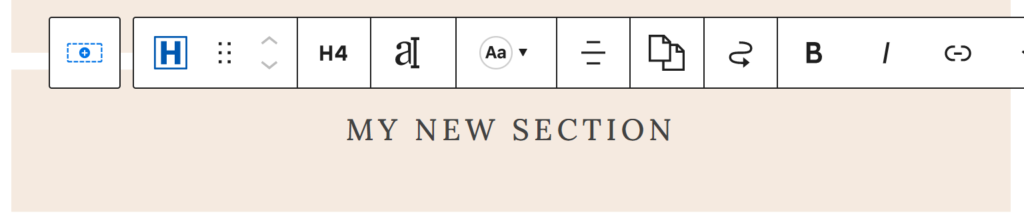
- You should now see your copied section. You can click on the existing content widget, then Delete it by clicking the key on your keyboard, so now all you’re left with is the header of your new section. Click on the text and edit to your liking!
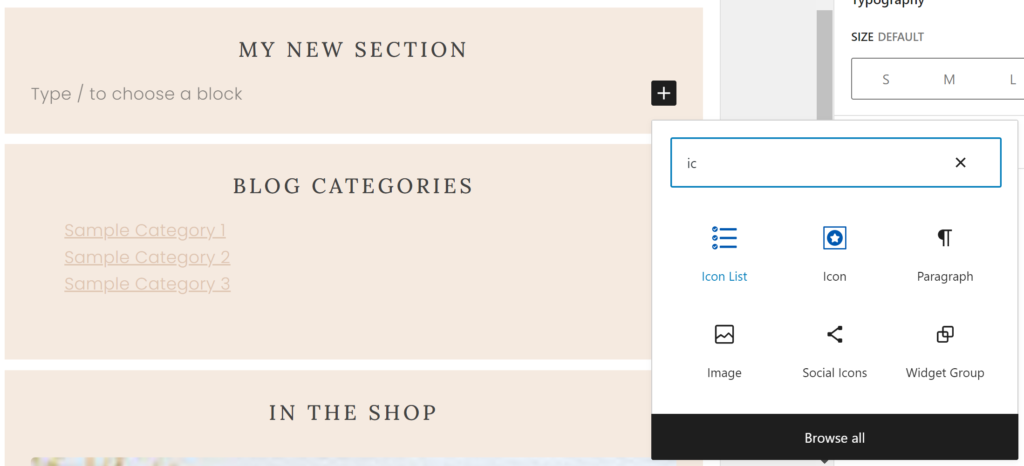
- Now click Enter on your keyboard to start adding content to your new section. Click the + that appears to the right and search for the widget you wish to add. For this example, I will add an Icon List.
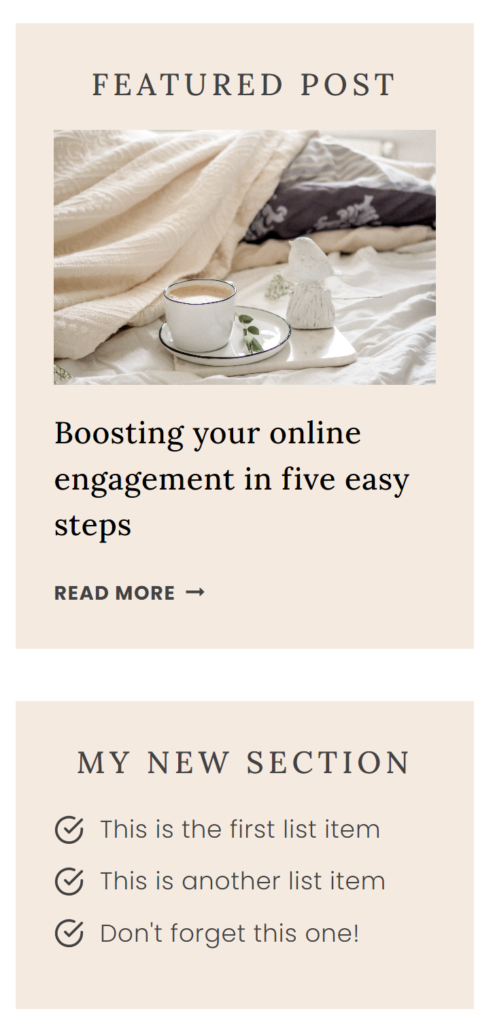
- Create your new content as desired, then when you’re done, click Update!
- Repeat these steps as much as necessary to get your sidebar just how you like it!
- Refresh your page and check out the changes!
Rearrange Widgets
- Similar to adding a Widget, open the List Navigation from the three lines icon at the top.
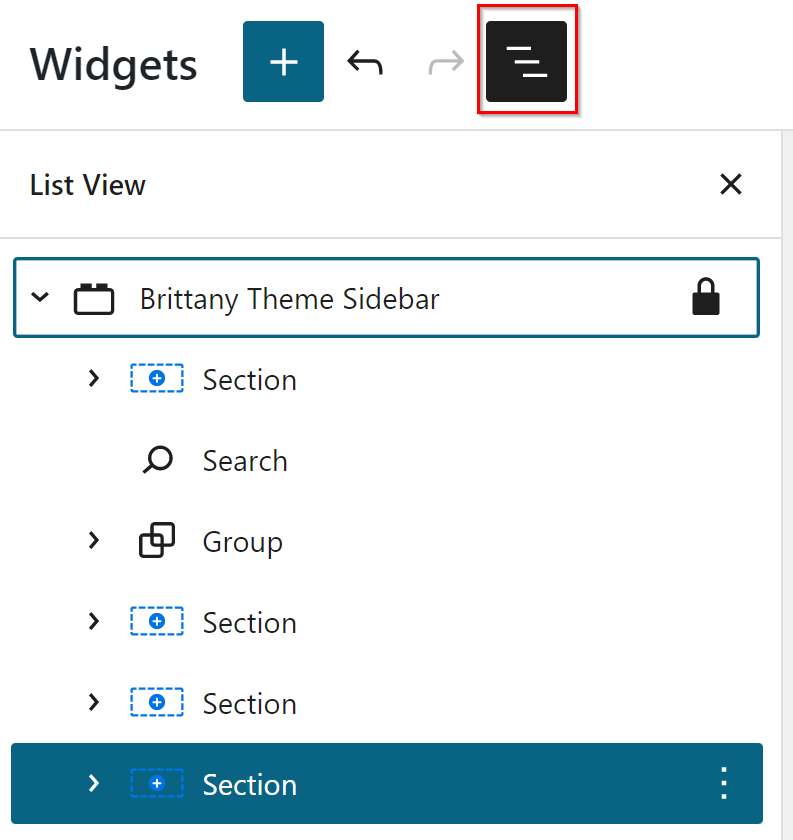
- Click on the section you want to move — it will highlight the content on the page.
- On the page, a top toolbar will open above the section. Click on the up arrow as much as needed to arrange how you’d like. You can also move down by clicking the down arrow.
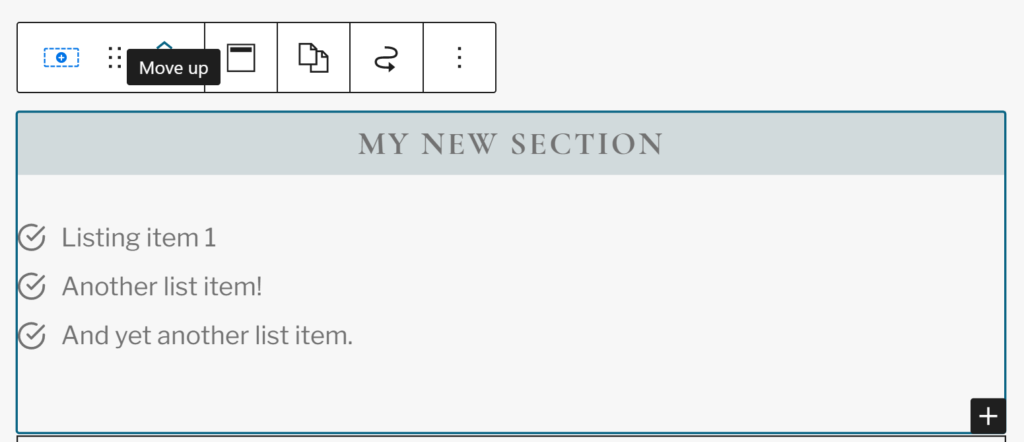
- Click Update when you’re done, and take a look at your changes on your site!
Different Sidebar for Blog, Archive, Etc.
When updating settings for Page Layouts, you may have noticed you can change the sidebar displayed on these pages. There are two sidebars available to create and display throughout your site!
- Sidebar 1 is the main sidebar used on blog and post pages by default.
- Sidebar 2 is used for the Shop/WooCommerce page! If you do not have a Shop or WooCommerce enabled, you can replace the content here with whatever you please.
- To edit these new sidebars, go to Appearance > Widgets in your Admin Dashboard.
- You will see several options available, including Sidebar 1 and Sidebar 2. Simply click on either one to open and start editing!
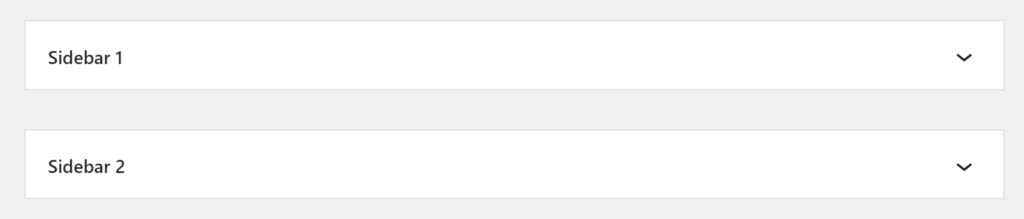
- After you’ve finished editing, go to the theme Customizer.
- Go to Posts/Pages Layout, and click on the page type you want to change the sidebar for. For this example, we will do Archive.
- Scroll down to Post Archive Default Sidebar.
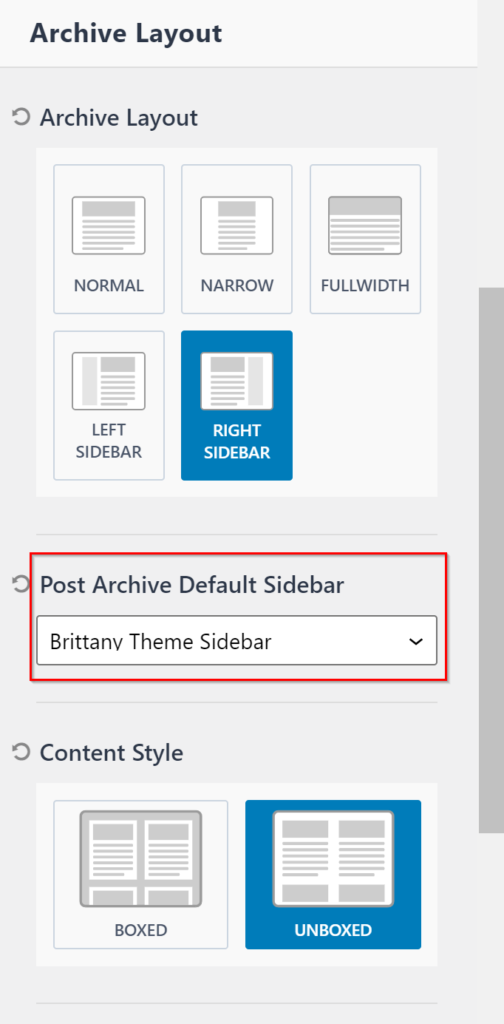
- Click on the dropdown and select the new sidebar you’d like to set and the preview will update on your right!
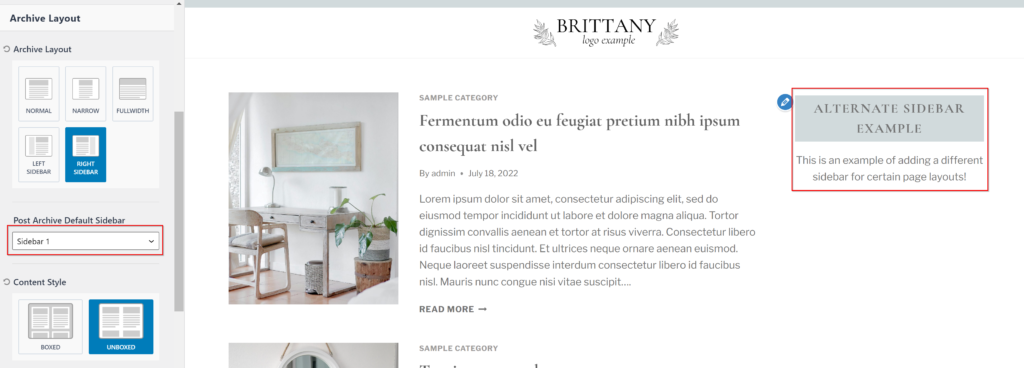
- Once all looks good, click Publish!
Upading the Text Accents
Throughout the site, you’ll notice some text elements feature a colored box behind them, or text in a script font. Here I’ll walk you through how to customize these and apply to your own text!
Colored Box Background
There are two different colored background accents for text. One for lighter pages, the other for darker! Both are updated following the same steps, but you will need to do these steps twice, adjusting at step 9, if you want to update both. This will guide you through that. Let’s get started!
- Navigate to this website, which will help us create the code we need.
- The items we want to update is the angle, HEX and Stops, indicated below:
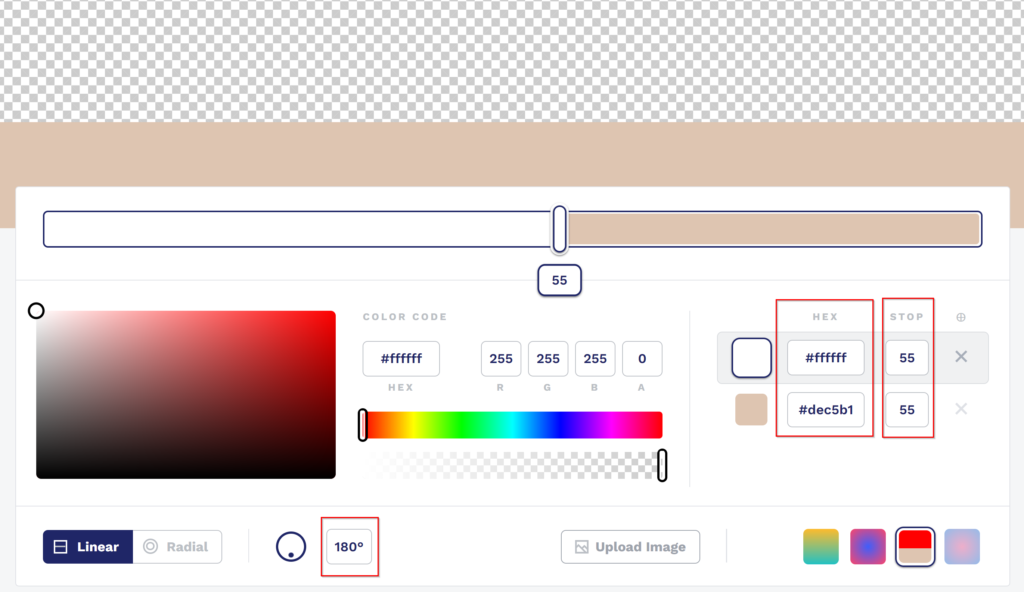
- Update the angle (located near bottom center) to 180.
- Insert your desired HEX codes (recommended to keep the first at #ffffff, with 0 in the A box – this creates a transparent top and looks great on many different colored pages!).
- Set both STOP points to 55.
- Scroll down to view the CSS code and click Copy to Clipboard.
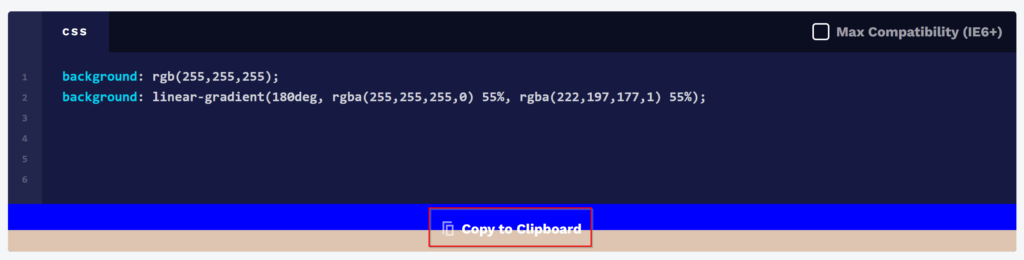
- Go back to your site and open the theme Customizer.
- Navigate to Additional CSS
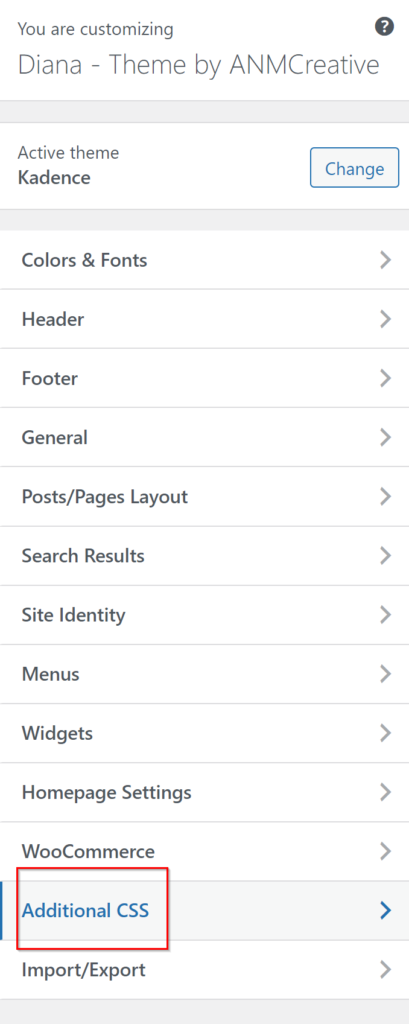
- Using your copied code, you’ll want to place it with the necessary additional code. Select one of the options below: if you are updating a light color box, or darker color box.
.text-accent-1 mark {

YOUR CODE HERE

!important;
}
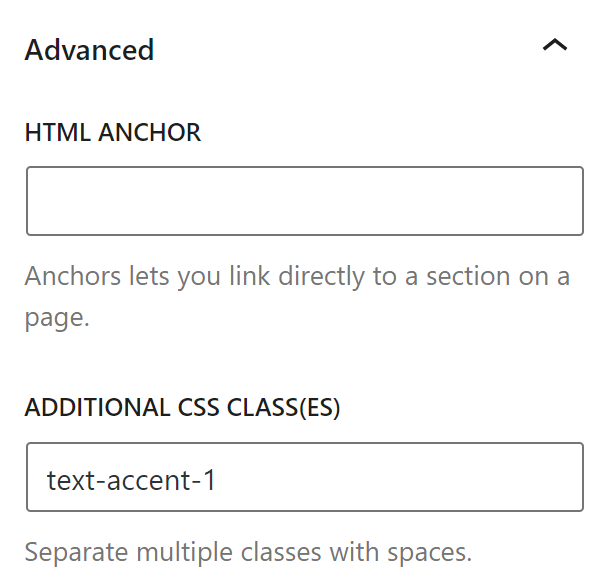
To use on your site, add this text in Additional CSS Class(es) to the block settings in page editor, located under Advanced settings:
text-accent-1Example:
.text-accent-2 mark {

YOUR CODE HERE

!important;
}
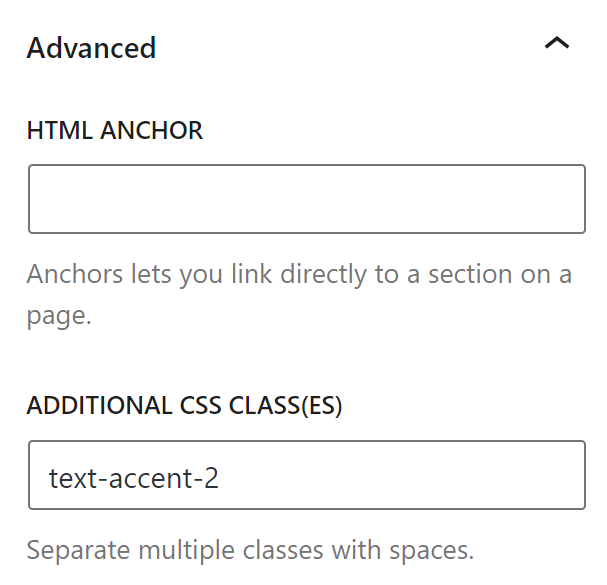
To use on your site, add this text in Additional CSS Class(es) to the block settings in page editor, located under Advanced settings:
text-accent-2Example:
- So it will end up looking something like this, depending on the code you’re updating (this example is using Accent 2):
.text-accent-2 mark {

background: rgb(255,255,255);
background: linear-gradient(180deg, rgba(255,255,255,0) 55%, rgba(177,212,222,1) 55%);

!important;
}- Almost done! Now, we want to remove the semicolon ( ; ) at the end of your generated color code.
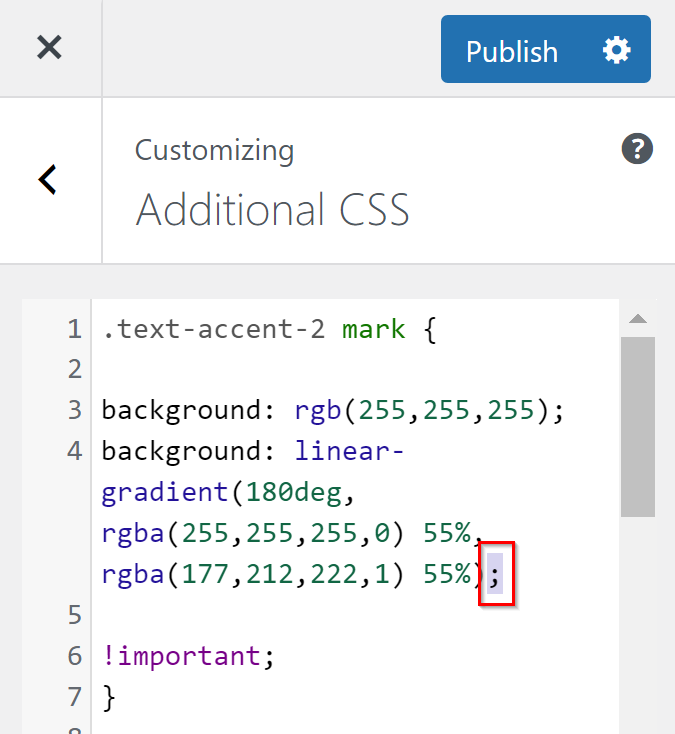
- Now click Publish and view your changes!
- Repeat for the other accent color, if you wish!
- To go back to theme defaults, simply delete the code you added in Additional CSS!
Update the Script Font
The method of updating the script font depends on when you have downloaded the theme. Please refer to the approprate section!
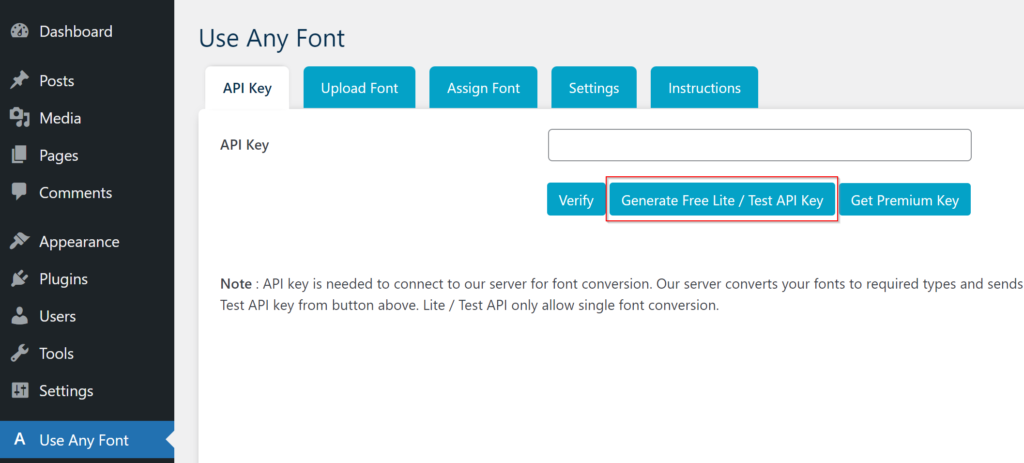
- In your admin dashboard, navigate to the Use Any Font tab.
- In the opened tab (API Key), click Generate Free Lite / Test API Key.
- Then click Verify.
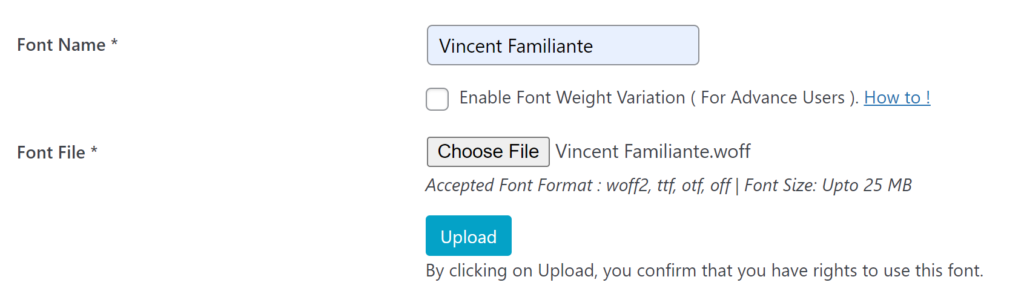
- Now go to the Upload Font tab, click the Upload Fonts button, and enter in the font name and upload the file.
- Then click Upload.
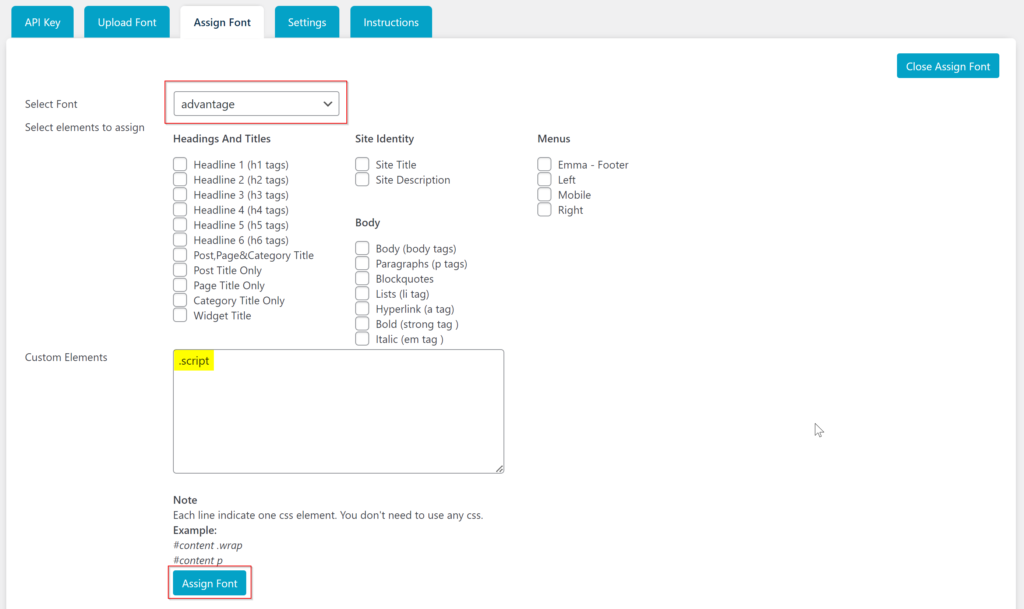
- Now go to the Assign Font tab and click the Assign Font button.

- In the dropdown, select the font you just uploaded, and in the Custom Elements text box, type in
.scriptthen click Assign Font and you’re done!
Applying the Script Font to Text
There are two different ways you can do this. The first method is recommended if you feel like you will, at some point, want to change this font to a different one down the road, and you only have to make one change in one spot for it to reflect across all text blocks with the font. The second method is more straight-forward, but if you want to do change a lot of text blocks to a different font, this will be more time consuming as you’ll have to do it one-by-one.
So, pick your preferred method to get started!
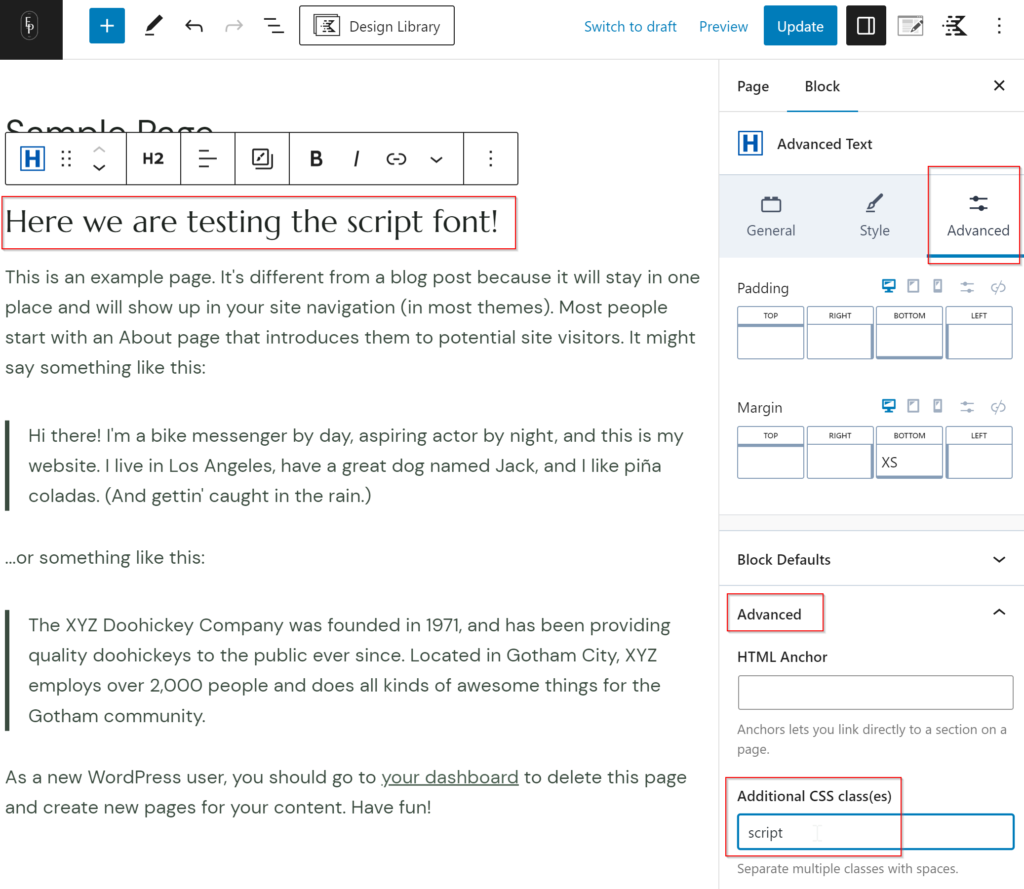
- Select the text block that you want to apply the font on.
- In the block settings, navigate to the Advanced section, and toggle the Advanced dropdown.
- Simply type in “script” under Advanced CSS class(es).
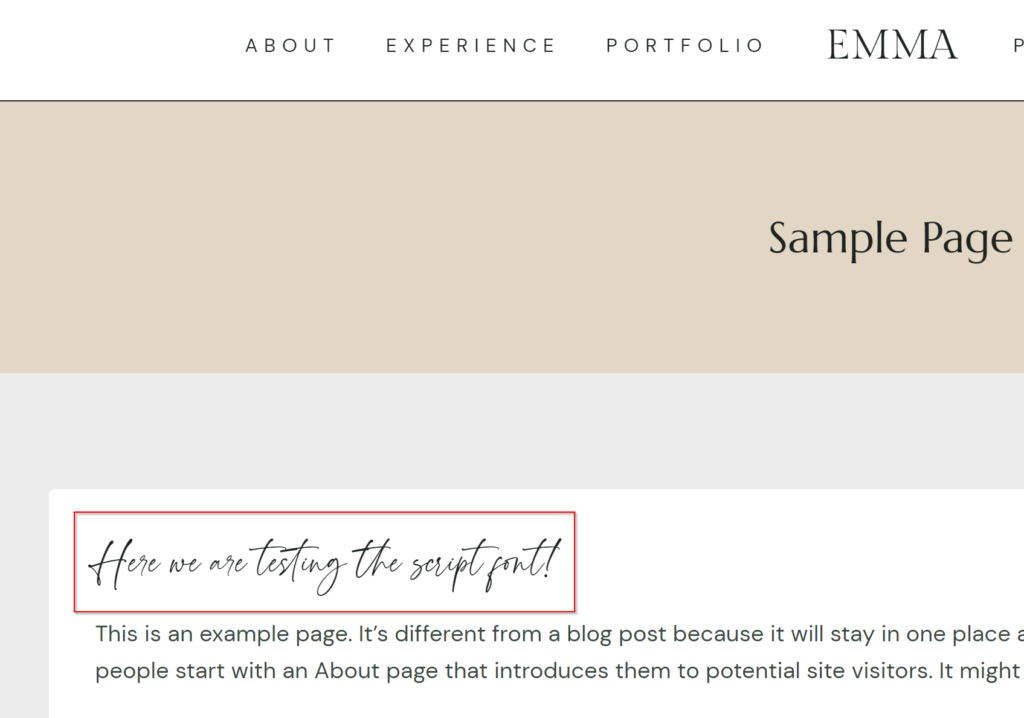
- Save when you’re done and take a look at your page!
NOTE: The changes may not reflect in the editor, but it will on the live site!
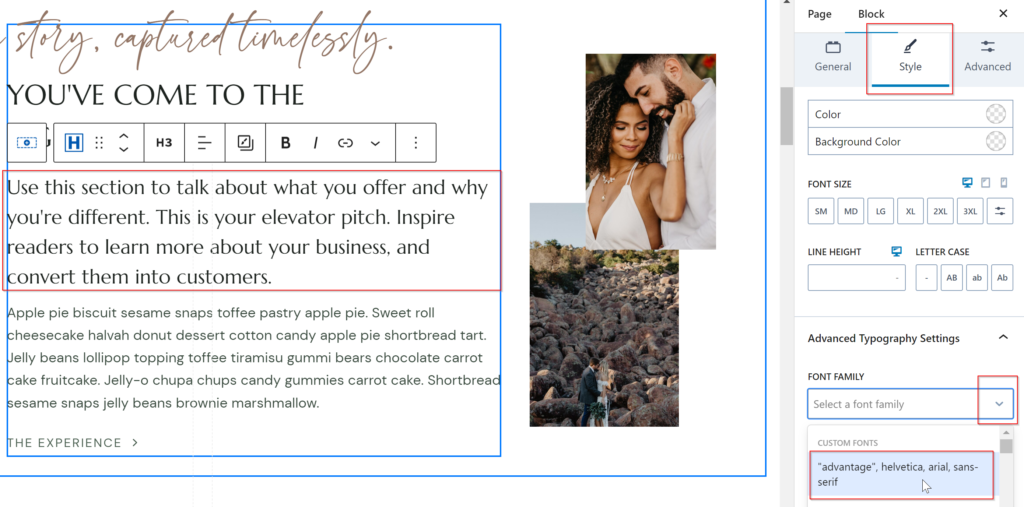
- In the text block’s settings, go to the Style tab and open the Advanced Typography Settings section.
- Select your font from the dropdown and click update!
NOTE: By default, the script text on all pages included with the theme have been assigned the .script class in their block settings (explained in Method 1). So, if you are using Method 2 to change a font with the script, you’ll just delete “script” from the text box presented in Method 1.
Ensure that the plugin Custom Fonts is installed and activated in order to continue!
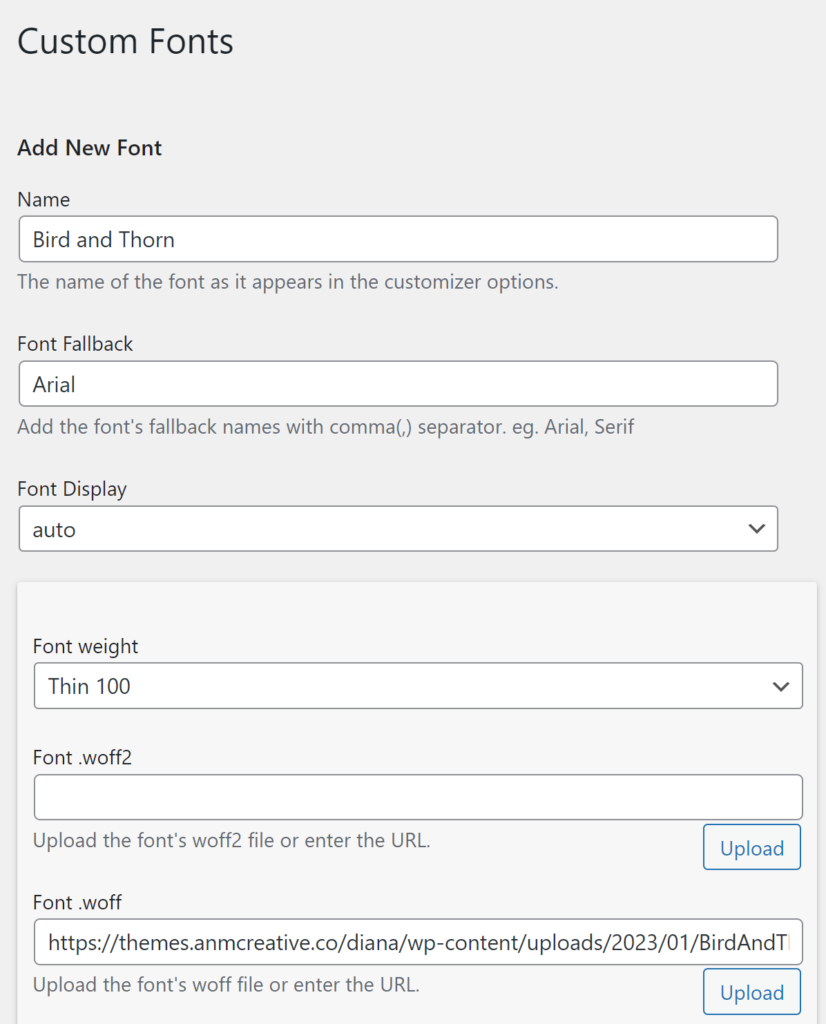
- In your WordPress Admin dashboard, go to Appearance > Custom Fonts.
- Add the name of your font, and include a fallback (font that appears if the device cannot load your indicated font).
- Upload your web font file (.woff or .woff2) in the corresponding box. You can also do a .otf or .ttf file, but it’s generally recommended to stick with .woff or .woff2.
- Click on Add New Font at the bottom of the page when you’re done.
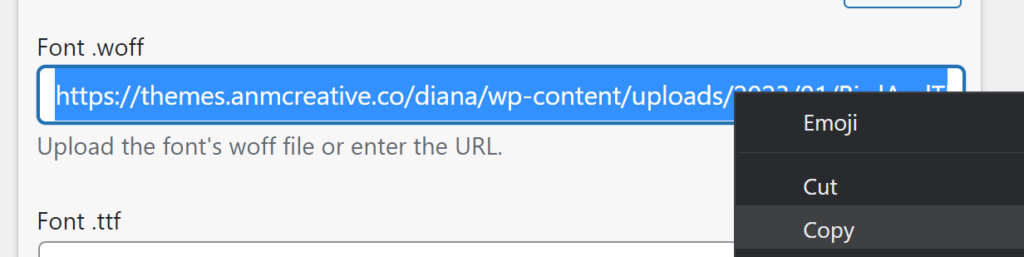
- Highlight and copy the URL of the uploaded font.
- Now go to your theme Customizer.
- Navigate to Custom CSS.
- You will paste your copied URL into the following code:
@font-face {
  font-family: 'NAME';
  src: url('URL HERE');
}

.script {
	font-family: 'NAME' !important;
}- Be sure to also add the name of your custom font where NAME is designated.
- Click Publish!
- To revert back to theme defaults, simply remove the code you added.
Page | Home Layout #1 (Default)
Let’s go through the customization options for each of the pages included in the theme. We’ll first start with Home Layout #1, which is the main/default option. The structure of this page is quite simple and fairly straight-forward.
- Hero section
- Welcome message
- Feature boxes/quick links
- Testimonials carousel
- Image & content with CTA
- Recent blog posts
- Newsletter sign up form
- Large CTA
updating Hero Section + Images
This section will be easiest to navigate through by utilizing the List View (Shift+Alt+O), clicking on the three lines icon at the top, which will open a left toolbar showing a list of Row Layouts.
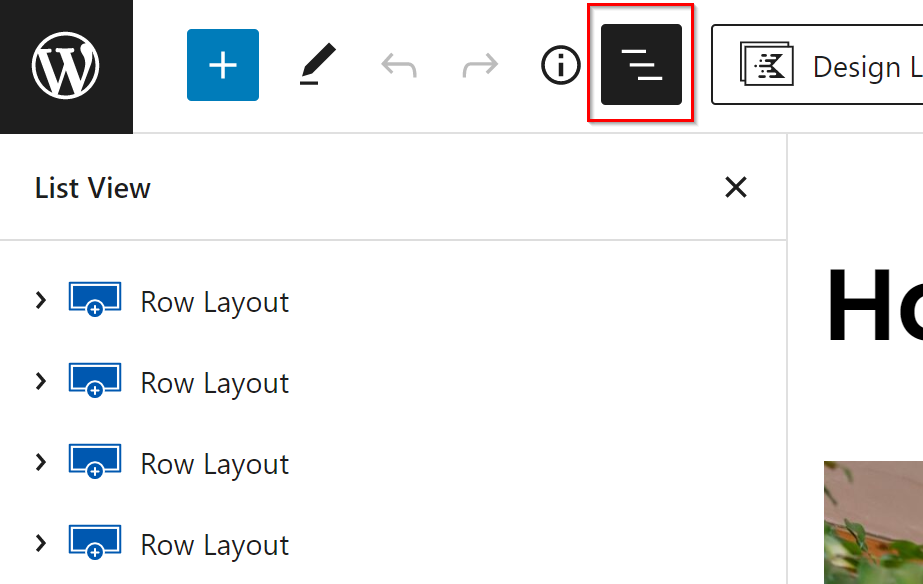
- Click on the arrow next to the first Row Layout to expand it.
- Do this again for the Section, then the Row Layout, until you drill down to two Sections with a label that says “picture”
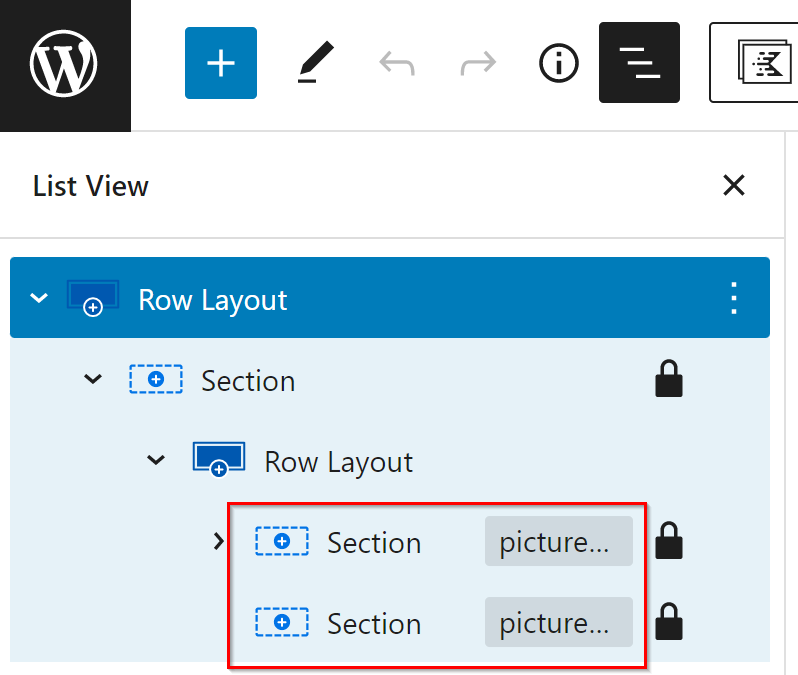
- Click on the first Section. This is to edit the picture on the left.
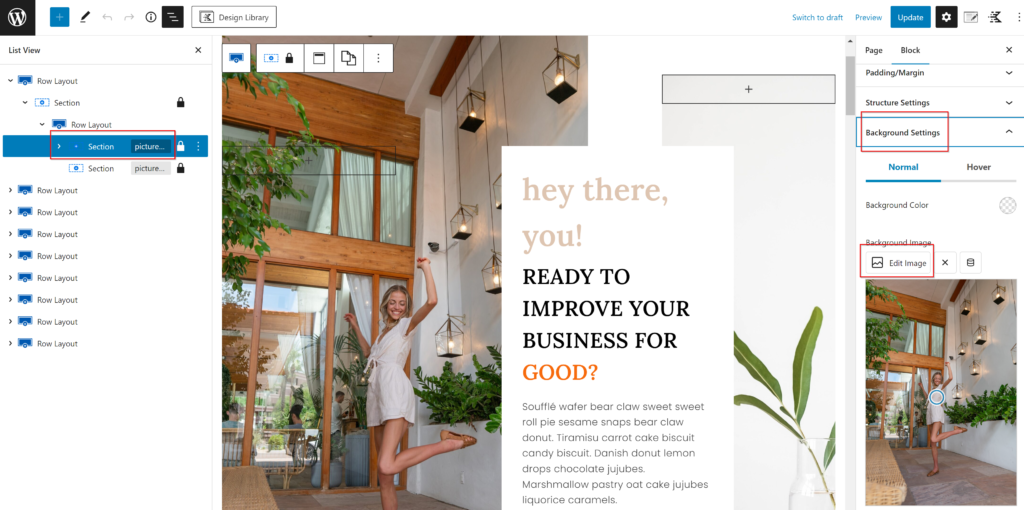
- In the right toolbar, navigate to Background Settings, and Edit Image.
- Now you can replace with your own image!
- Repeat these steps for the right-hand picture, clicking on the next Section element.
Applying a Text Accent
You may notice orange text throughout this page. Don’t worry – that is not how it looks on your main site! This is indicating there is a text accent applied, one of the pretty backgrounds we created in the previous section! Here’s how to use them!
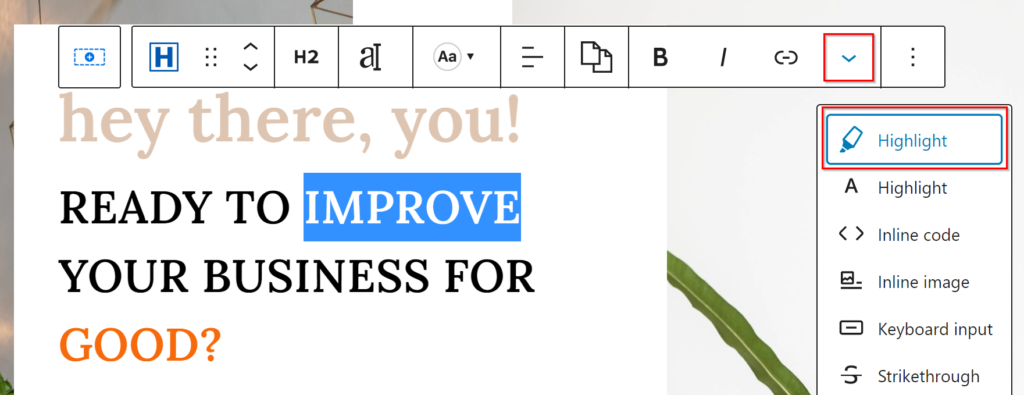
- Highlight the text you want to add the accent to (try to get ONLY the text in here, no spaces before or after).
- Now click the down caret that is visible in the element toolbar, and click Highlight, the one with a marker icon.
- Now in the right sidebar, scroll down to Advanced, then Additional CSS Class(es).
- Apply one of the codes, depending on if you want your light or dark background, as specified here!
text-accent-1text-accent-2
- Now click Save or Publish!
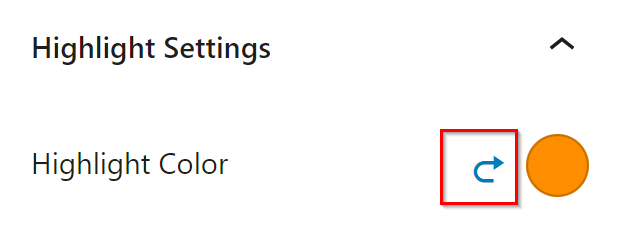
- If your text is displaying orange, go to Highlight Settings in the right sidebar and click the arrow next to the orange circle to remove it.
Update Newsletter Box
You will follow these same steps anywhere you want to update a newsletter sign up form throughout the site.
- Click on any of the form fields to open up the form’s settings.
- You can add and edit the fields to your needs by clicking on the +Add Field button.
- In the right sidebar, locate Actions After Submit and click on it.
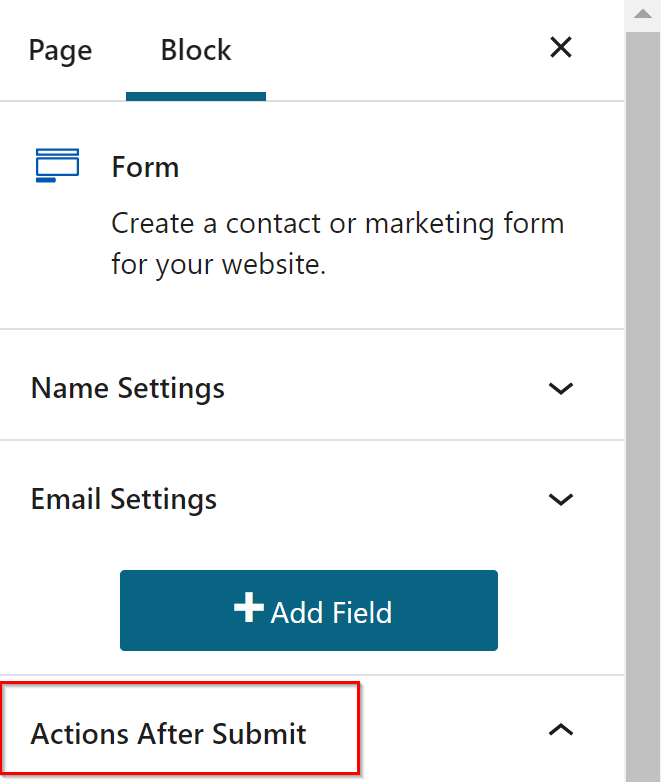
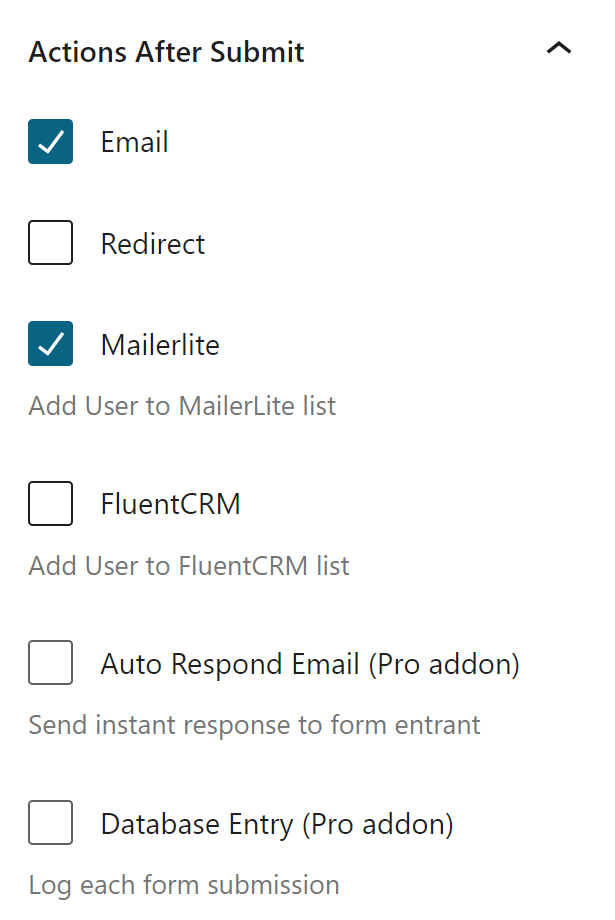
- This will now populate a list of choices, including many of the popular email marketing services. Click on the service or action you desire.
- NOTE: Some integrations may be a Pro Add-On. If you’re interested, I highly recommend looking into upgrading your Kadence theme — it is a phenomenal theme with extensive capabilities! However many of these services may provide a free plugin or integration as an alternative. Otherwise, you can keep the Action to email yourself, and you can manually add them to your marketing platform.
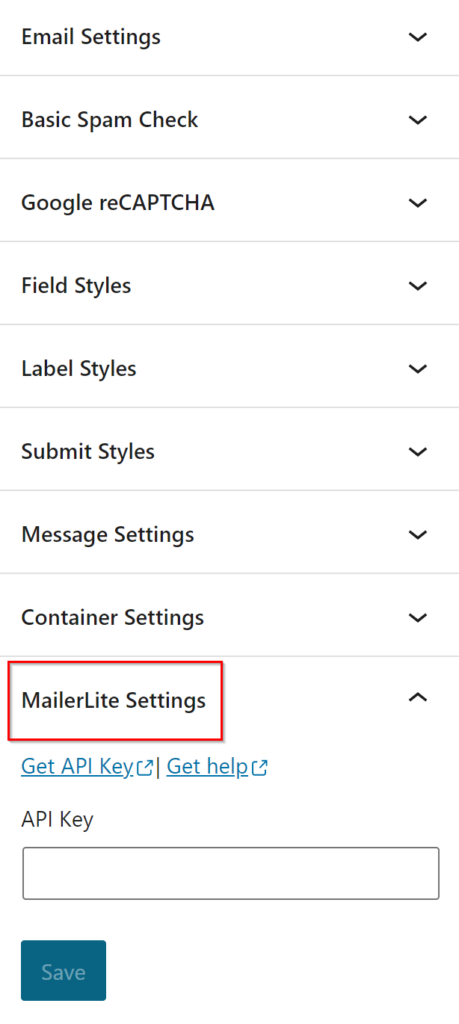
- After your new action is added, a new dropdown section may be added towards the bottom of the right sidebar. Locate the corresponding new section, open it, and follow the instructions of integration.
- Don’t forget to change the Email Settings if you wish to receive a copy of form submissions to your own email.
- Save and you’re done!
Page | Home Option 2
The features on this page use the same general knowledge as features on Home Option 1. Please refer to Section 16 of this documentation.
Page | Home Option 3
The features on this page use the same general knowledge as features on Home Option 1. Please refer to Section 16 of this documentation.
Page | About
The features on this page use the same general knowledge as features on Home Option 1. Please refer to Section 16 of this documentation.
Page | Services
The features on this page use the same general knowledge as features on Home Option 1. Please refer to Section 16 of this documentation.
Page | Podcast
The Podcast page is great for promoting your podcast and recent episodes.
Latest Episodes Module
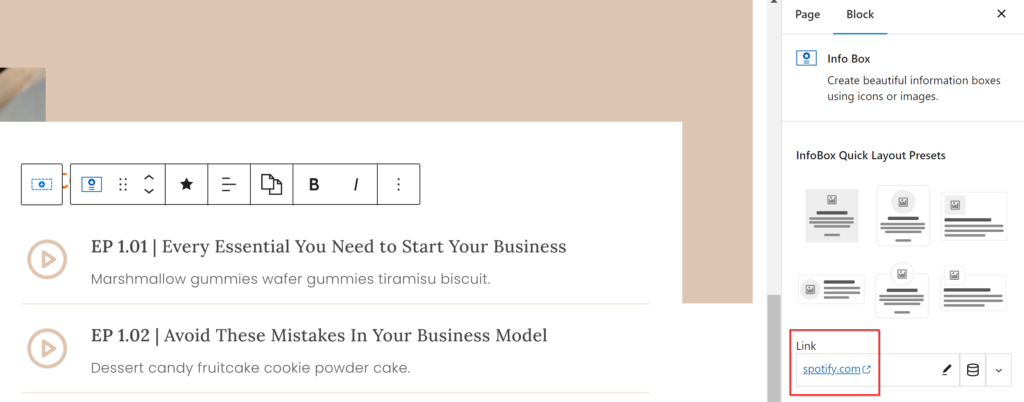
Here you can link to recently published episodes, either on your site or platform. Simply click on a list item and update the link on the block settings in the right sidebar. Make sure to do this for each list item.
Page | Sales/Course
The features on this page use the same general knowledge as features on Home Option 1. Please refer to Section 16 of this documentation.
Page | Lead Magnet
Configure Download Guide Input
This input form acts like a Newsletter Signup box, which you can reference this section on how to update.
Page | Instagram Landing
The Instagram Landing page is a great feature to direct your Instagram followers to since it is your own website URL they are landing at. This page is also super customizable so you can add as many features/links as you need!
Some features on this page use the same general knowledge as features on Home Option 1. Please refer to Section 16 of this documentation.
Add & Edit Links
- Click on any of the existing links, then click on the three vertical dots icon to the right to open the option menu.

- Click Duplicate.
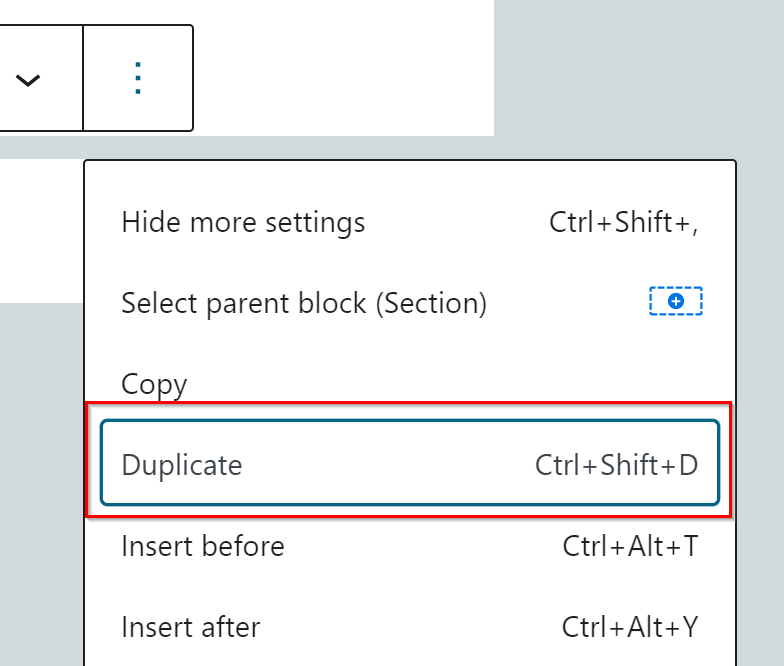
- Edit the text and link as needed!
Edit Newsletter Sign Up
Click here for updating the newsletter sign up.
Page | Coming Soon
If you’d like to utilize the Coming Soon page, you will need to download a plugin to do so! For this tutorial, I will walk through with a plugin that I recommend, though you are welcome to use whatever you’d like.
- Go to Plugins > Add New.
- Search for LightStart and install LightStart – Maintenance Mode, Coming Soon and Landing Page Builder
- Activate the plugin, then go to Settings > LightStart. (You may need to click through some screens that pop up, just cancel out of each.)
- On the first page, under General tab, click Activated for status.
- Then go to the Design tab, and utilize the Select page dropdown to locate the Coming Soon page.
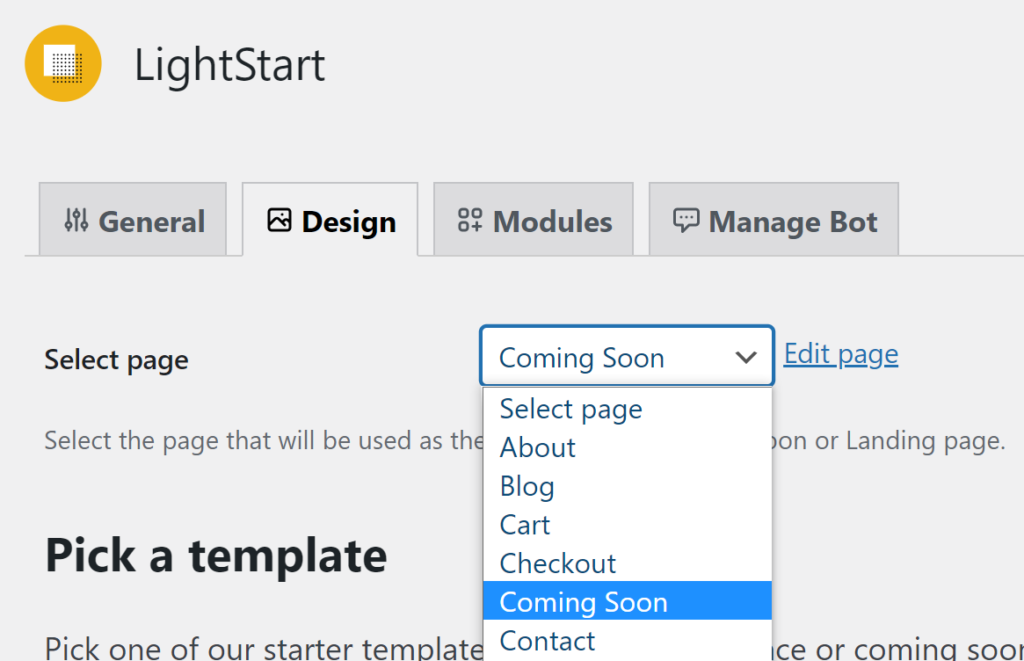
- Then go back to the General tab, scroll to the bottom and click Save Settings and you’re done!
- Don’t forget to customize the Coming Soon page!
Page | Blog
Change Blog Layout
You can change the way your blog page looks by going to the Customizer, Posts/Pages Layout > Archive Layout. Follow the items down the page to customize to your liking!
Customize Sidebar
Updating sidebar widgets – CLICK HERE
Page | Contact
The contact form on this page will need to be configured to your preferences. This is done following the same steps mentioned here.
WooCommerce | Customize Shop
If you want the WooCommerce-ready styling of this theme, you will need to have the WooCommerce version installed. Don’t worry, you can have both versions of the theme installed! If you want your store to look exactly like it does in the demo, please follow installation steps 2.2 & 2.3 with the WooCommerce version.
This theme is compatible with WooCommerce and includes features ready to customize! Layouts and pages of your Shop will be done in the Customizer under WooCommerce. The main listing page of the shop includes a sidebar which is customizable. Let’s review how to do this here!
- In the Customizer, go to WooCommerce > Product Catalog.
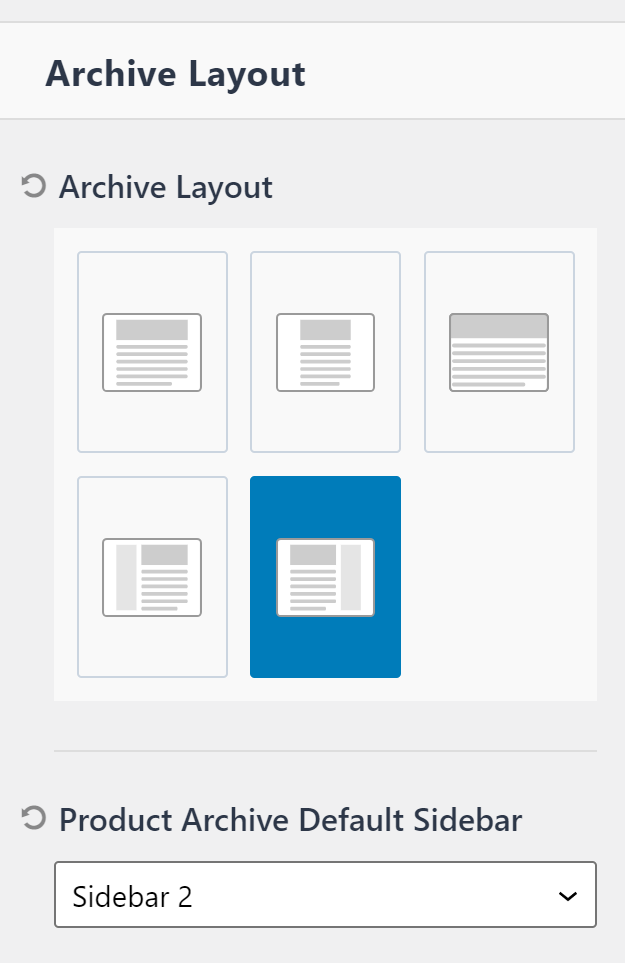
- Change the placement of the sidebar, or remove it, under Archive Layout.
- In the preview, click on any of the blue pencil icons next to the widgets in the sidebar. This will open the editing settings to the left.
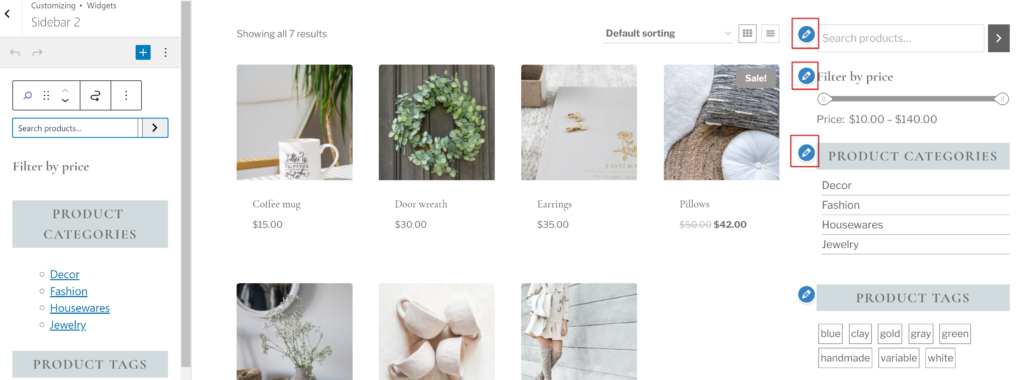
- Click the plus (+) at the bottom to Browse all and search WooCommerce to add shop-specific widgets.
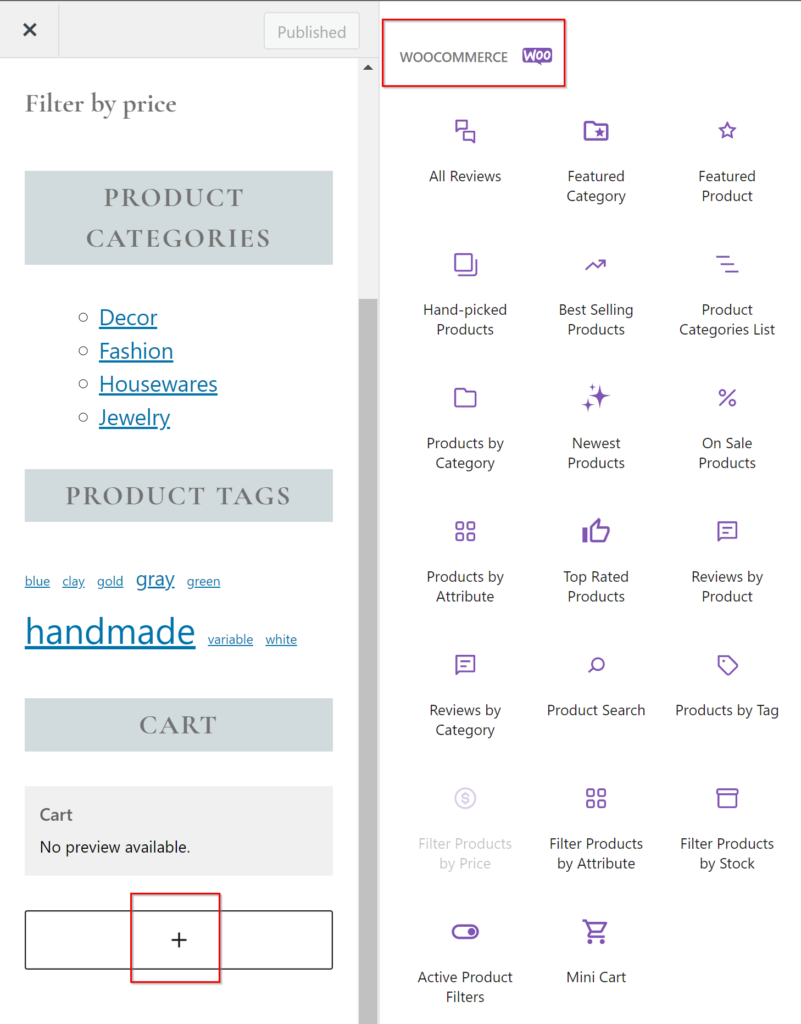
- Use the knowledge you’ve gained throughout the customization process to customize to your liking.