
Access all your theme’s template pages, modules, and more so you can always have the original template ready for customizing! The best part? It will ALWAYS fit to your current site’s fonts, colors and more so you won’t have to update anything other than the content.
- To view the design library, you will need to be in the page editor. Once you are, you should see a button at the top of the page that says Design Library. Click on it!

- In this new window, you should see a tab at the top that says ANM Creative Cloud. Click on it! If you don’t please skip to this section.
- You should now see a variety of designs related to your purchased theme. This is where full pages, sections, and more live, so you are able to add them to any page, at any time, whenever you need!
- Don’t worry if the preview doesn’t look exactly like the original theme you purchased, as the design colors, fonts, etc. will automatically inherit your site’s settings!
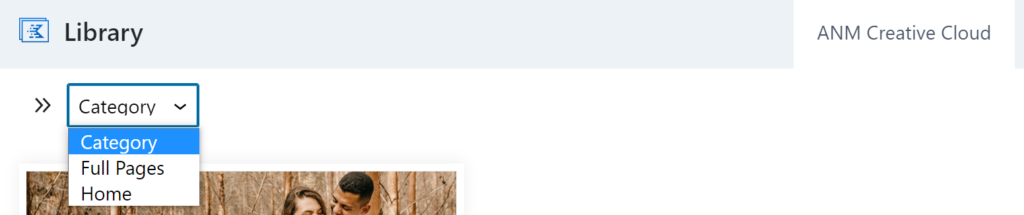
- Use the navigation dropdown in the left corner to quickly sort through the type of item you’re looking for.
- Click on any design you want to add to your page. This may take a few moments, so please be patient with it!
- Afterwards, the design is on your page and ready for customizing!