
If your theme included Forminator as a download, you will need to configure the forms to suit your needs, and send you notifications to your email!
- In your admin dashboard, go to Forminator > Forms.
- Locate the form you need to configure, and at the far right, click on the Edit button.
- Here you can update the form fields to add, edit, and remove any questions necessary.
- Please note: Many forms may have conditional logic which are indicated by the yellow link icon to the right. This means these fields appear when a user selects an indicated answer in the form. To learn more about conditional logic, click here.
- When you’re satisfied with the form fields, go to Email Notifications in the left sidebar.
- Click on + ADD EMAIL NOTIFICATION.

- Type in a name for your notification.
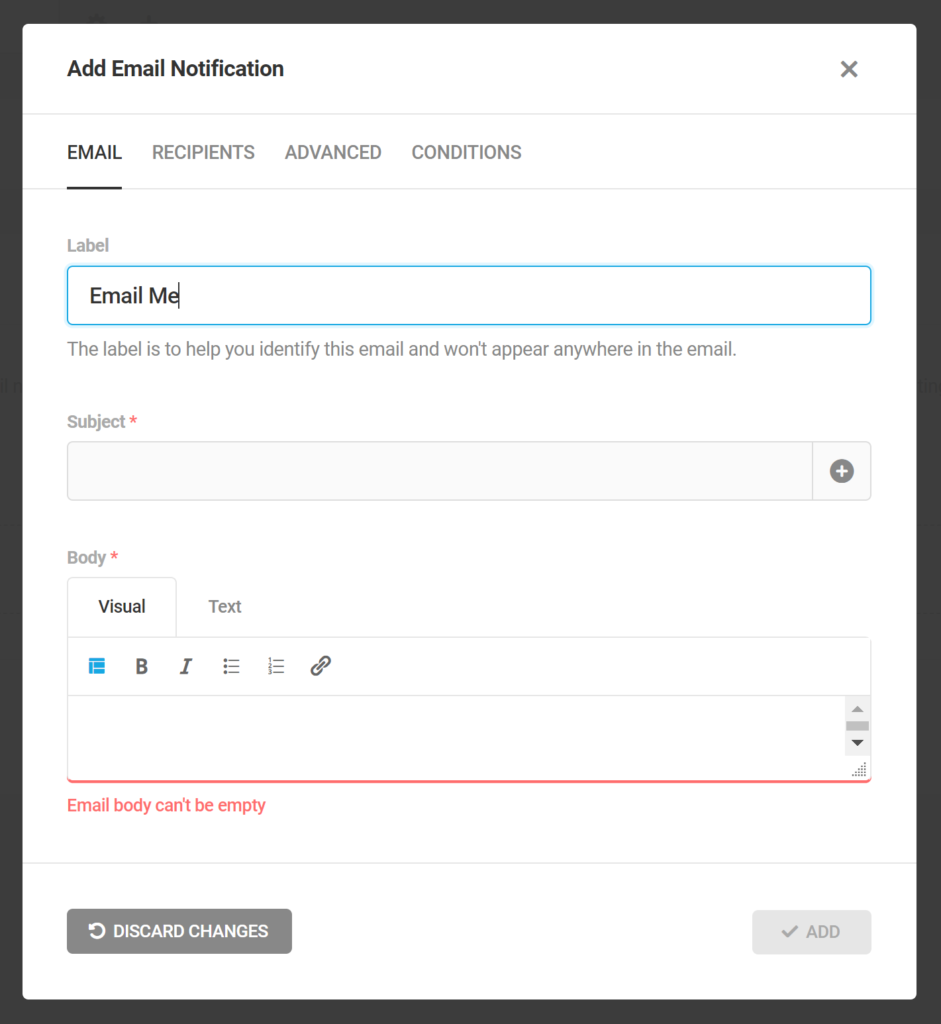
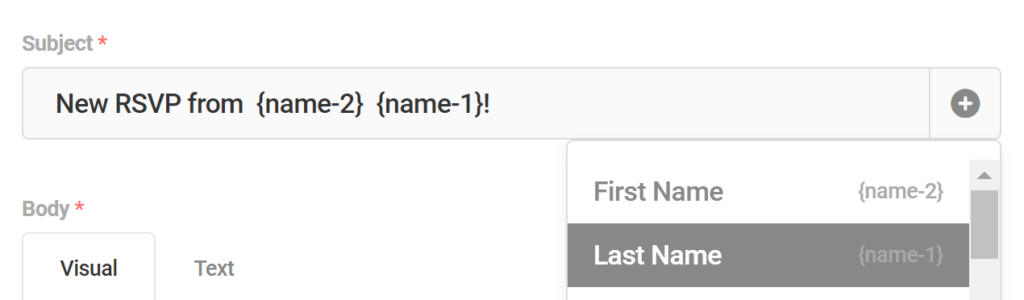
- Type in a Subject line (how it will come through the email), and feel free to use form fields to make it even more custom, by clicking the plus icon to the right.
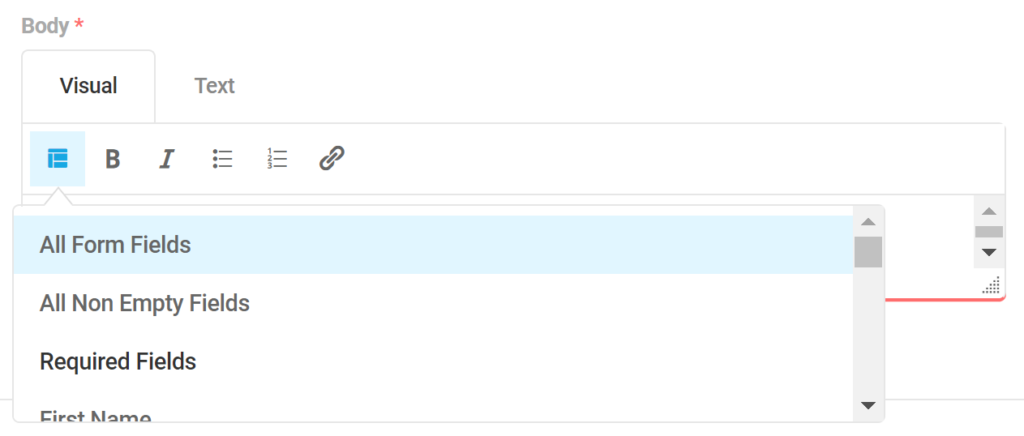
- Now in the Body field, click the icon that shows a cluster of blue boxes. Then click on All Form Fields.
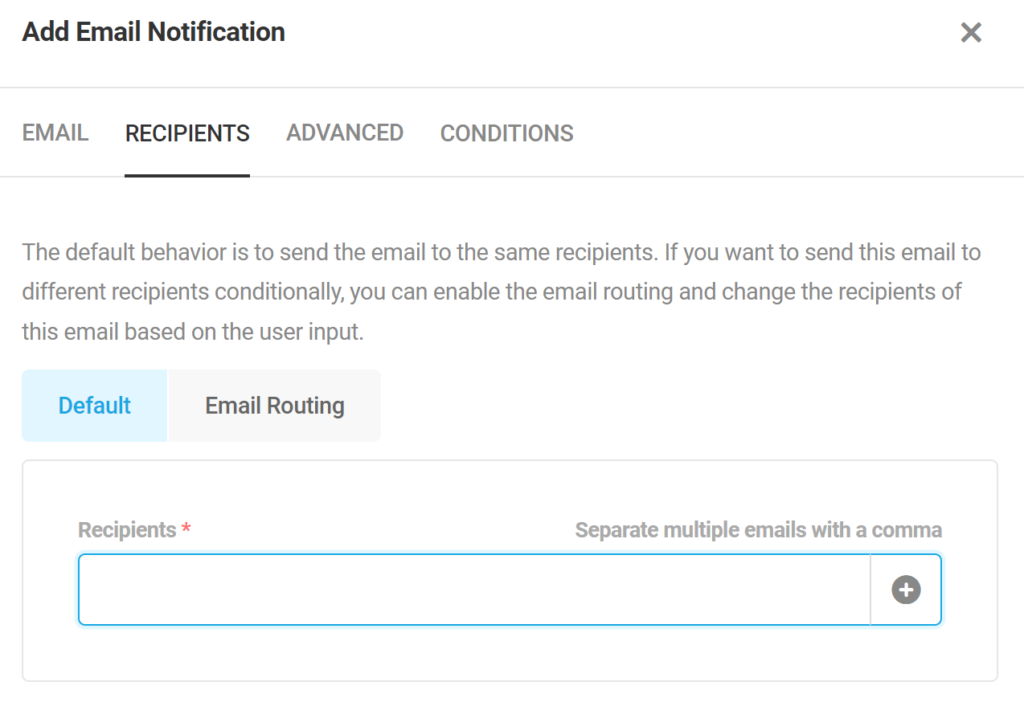
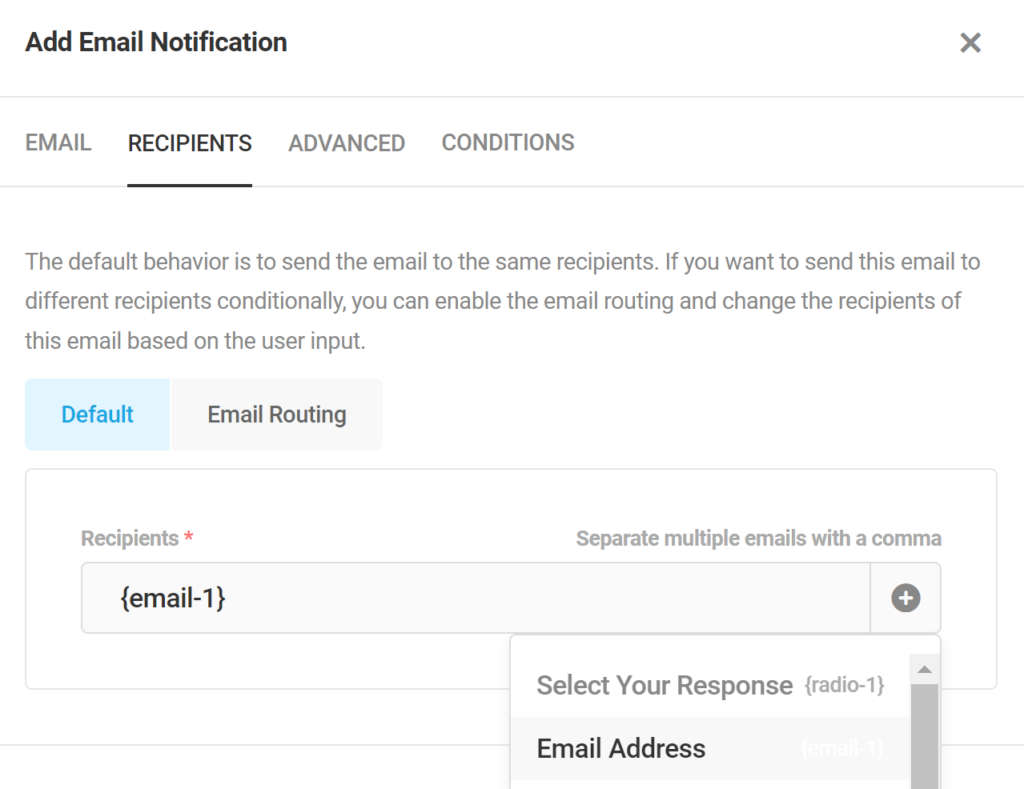
- At the top, click on the Recipients tab and enter in the email(s) you want this form’s submissions to go to.
- Click Add!
- Be sure to click the blue Update button in the top right corner to save all your changes!
Send a Copy to a Guest
- It is a good idea to send a copy to your guest’s for their record too! To do this, repeat the above steps, but this time, give it a Subject Line your guest will be able to identify easily.
- Type in a thank you message in the Body, and this time, select All Non Empty Fields in the blue box cluster icon. That way, your guest will only see what they answered!

- In the Recipients tab, click the plus icon to the right, and select the Email Address field.
- Click Add!
- Be sure to click the blue Update button in the top right corner to save all your changes!